MCP Server Overview
PBMCPServer.exe is a standalone console application that exposes Paquet Builder’s full project engine via the Model Context Protocol (MCP). It allows external AI tools (such as Claude Code, Cursor, Windsurf, or any MCP-compatible client) to open, modify, compile, and save installer projects programmatically, without a GUI.
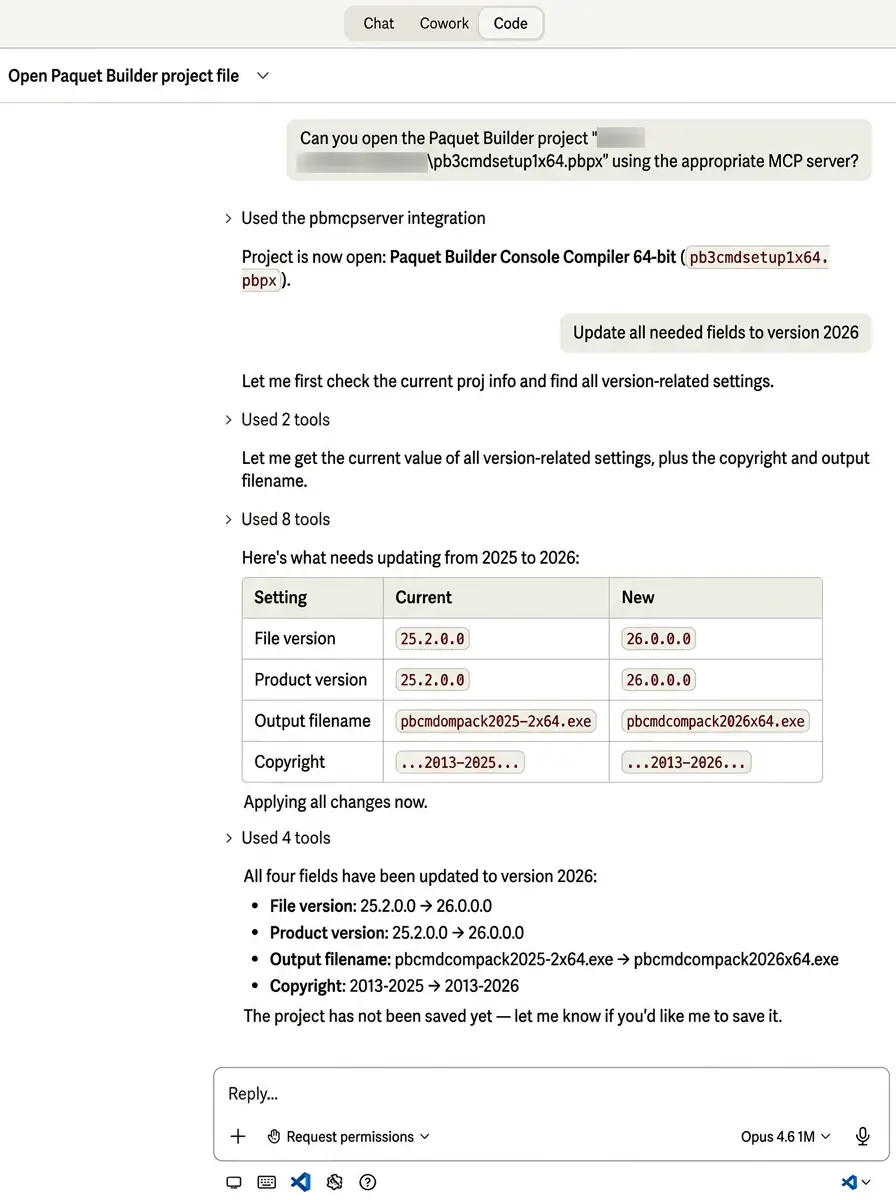
Here, Claude Code is connected to the Paquet Builder MCP Server and updates all version numbers, copyright, and other project settings in a single command through a natural language conversation:
What is MCP?
Section titled “What is MCP?”The Model Context Protocol (MCP) is an open standard that enables AI assistants to connect to external tools and data sources. It uses JSON-RPC 2.0 messages exchanged over standard input/output (stdio). Paquet Builder implements the MCP 2025-03-26 specification.
Use Cases
Section titled “Use Cases”| Use Case | Description |
|---|---|
| AI-driven project creation | Use Claude Code or Cursor to set up a complete installer project via natural language conversation |
| CI/CD automation | Integrate installer builds into your deployment pipeline |
| Batch modifications | Apply changes to multiple projects programmatically |
| Headless compilation | Compile installers on a build server without opening the GUI |
| Scripted workflows | Combine MCP tools into complex automation sequences |
AI Assistant vs. MCP Server
Section titled “AI Assistant vs. MCP Server”Paquet Builder offers two AI integration points. Choose the one that fits your workflow:
| Feature | Embedded AI Assistant | MCP Server |
|---|---|---|
| Interface | Built-in chat window | External AI client |
| Requires GUI | Yes (Paquet Builder open) | No (fully headless) |
| Change confirmation | Action cards (Apply/Cancel) | Direct mutations |
| Project saving | Manual (click Save) | Automatic after each change |
| AI provider | Configured in Paquet Builder | Managed by the AI client |
| Best for | Interactive, conversational use | Automation, CI/CD, scripted work |
Available Tools (20+)
Section titled “Available Tools (20+)”The MCP server exposes over 20 tools organized into categories:
| Tool | Description |
|---|---|
open_project | Open an existing .pbpx project file |
close_project | Close the current project |
save_project | Save the project to disk |
new_project | Create a new blank project |
list_recent_projects | List recently opened project files |
get_project_info | Get a comprehensive project overview |
| Tool | Description |
|---|---|
get_setting | Read any project setting |
set_setting | Modify a project setting |
get_setting_info | Get documentation for a setting (type, effects, dependencies) |
find_relevant_settings | Search settings by natural language intent |
| Tool | Description |
|---|---|
collection_query | Query files, variables, localization, registry, shortcuts, or screens |
collection_mutate | Add, update, or delete items in any collection |
| Tool | Description |
|---|---|
custom_actions_query | List and inspect custom actions |
custom_actions_mutate | Add, update, delete, move, or duplicate actions |
custom_actions_validate | Validate action configuration and control flow |
| Tool | Description |
|---|---|
compile | Compile the project into an installer |
get_build_log | Retrieve the compilation log with errors and warnings |
search_doc | Full-text search across product documentation |
filesystem | Read or write files on disk |
execute_directive | Run a directive file (.pbd) |
Getting Started
Section titled “Getting Started”-
Install Paquet Builder (GUI) on the target computer.
-
Download the MCP server. In Paquet Builder, go to Help → Check for Updates & Addons to download the MCP server installer. You can also download it directly from the MCP Server download page.
-
Run the MCP server installer. It will install
PBMCPServer.exeinto the Paquet Builder installation folder. -
Configure your AI client. Add the MCP server to Claude Code, Cursor, or Windsurf settings.
-
Start chatting. Ask the AI to open a project and make changes.