Inline editing
Modify values directly in the Value column. Press Enter to save, OK to apply all changes, or Cancel to discard.
The Action Properties Editor lets you configure how a specific custom action behaves by adjusting its parameters.
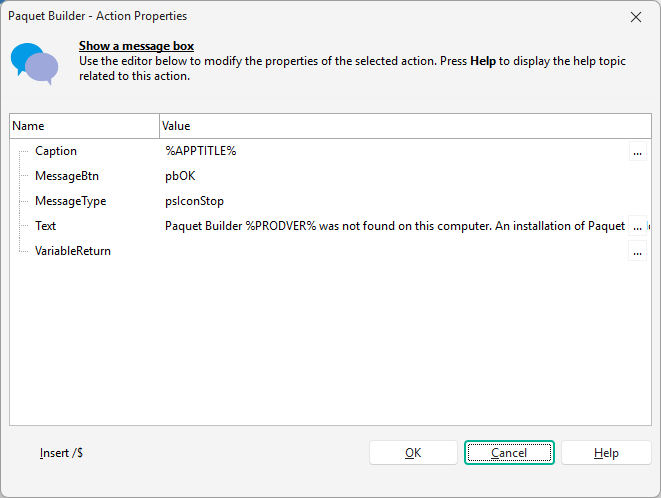
The editor organizes properties into two columns:
| Column | Description |
|---|---|
| Property Name | Some properties include sub-properties indicated by a + sign. Expand/collapse with the icons or keyboard. |
| Property Value | Depending on the type: text field, drop-down menu, or a native checkbox for boolean properties. Every text field also shows an Ellipsis (…) button that opens the expanded editor. |
Inline editing
Modify values directly in the Value column. Press Enter to save, OK to apply all changes, or Cancel to discard.
Expanded editor
Click the Ellipsis (…) button available on any text field, or press Ctrl+Enter while editing, to open the expanded editor. Ideal for complex strings (file paths, long text).
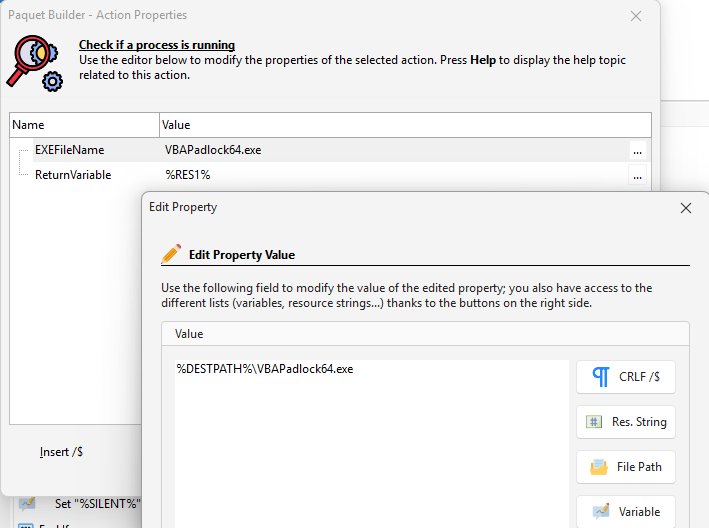
In the expanded editor, insert dynamic content using the toolbar:
Variables
Insert system or project variables (e.g. %DESTPATH%, %PBLANGID%).
Resource Strings
Use localized text for multilingual support.
File References
Reference files that will be unpacked during installation.
Line Breaks
Use /$ to insert a carriage-return-line-feed (e.g. Line1/$Line2).