A visual tour

See Paquet Builder in action.

32 screenshots across 6 sections — the IDE, build and signing tools, AI assistant, and the installers your users actually see. Click any image to open it full-size; jump to the docs page it lives in with the link below each caption.

01 / 06

The Paquet Builder IDE

1 featured + 5 more

A modern, tabbed environment for designing every aspect of your installer — from project setup to package content — with first-class light and dark themes.
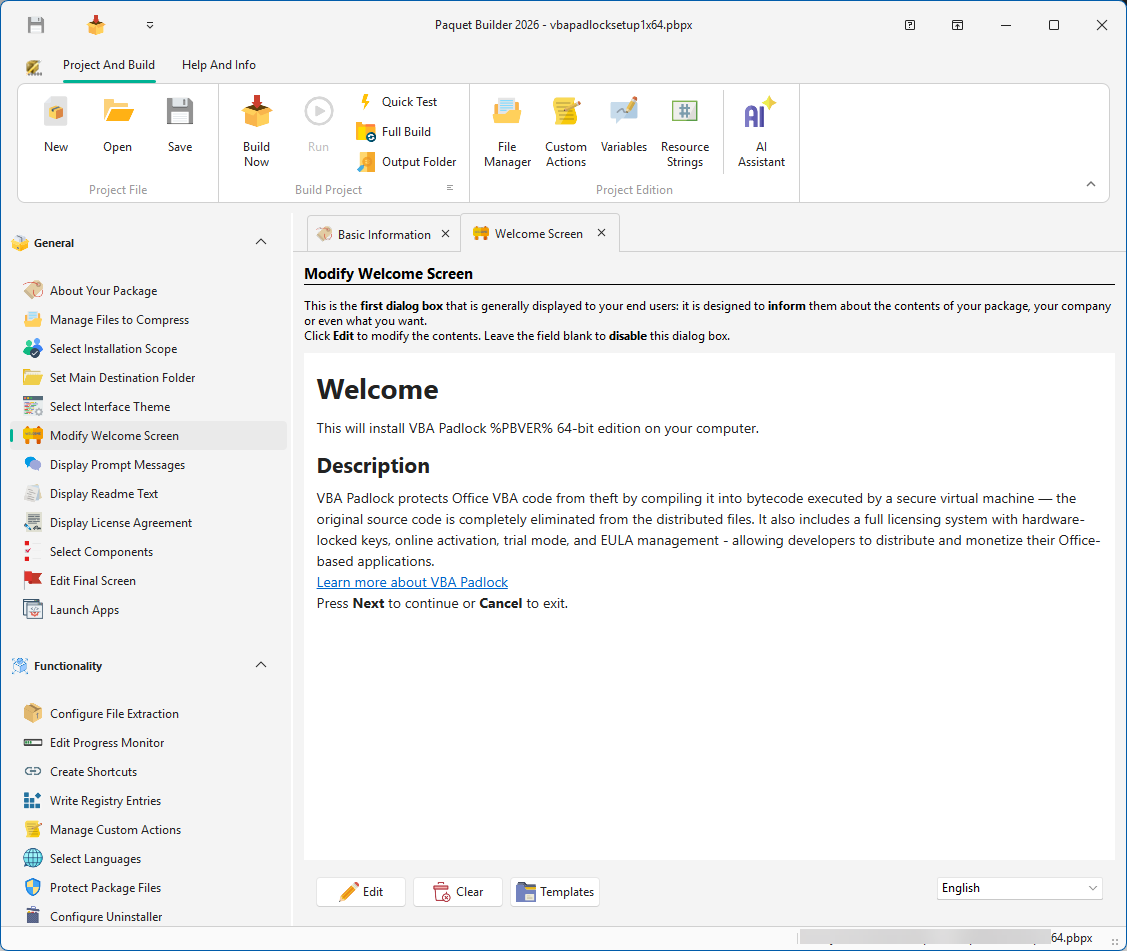
Paquet Builder main window in light theme showing the ribbon, tabbed workspace and settings panel
Featured

A full IDE for Windows installers

The ribbon, the tabbed workspace, the settings panel — everything's where a Windows developer expects it to be.

Read: Introduction
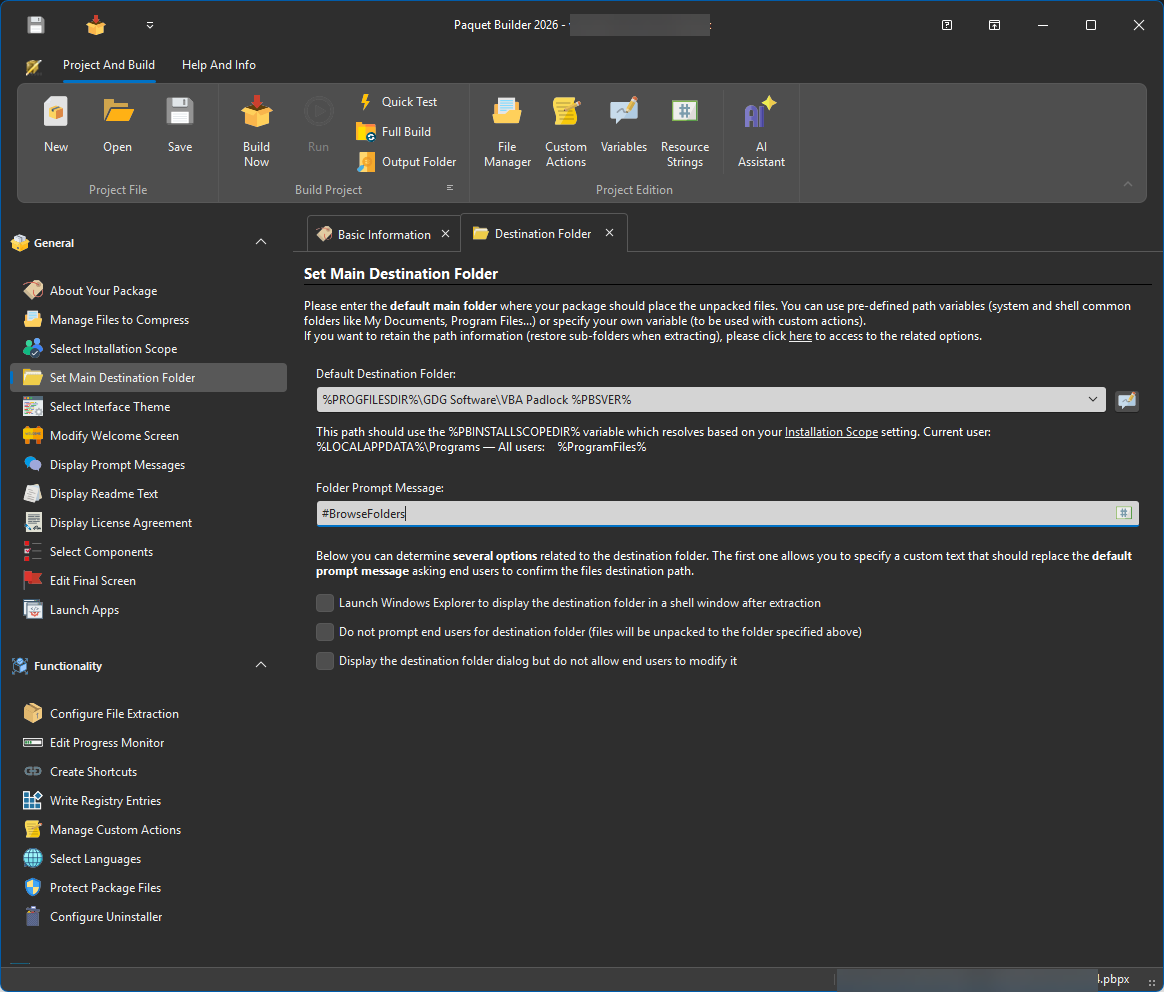
Paquet Builder main window in dark theme with the navigation panel and project settings open
First-class dark theme Introduction
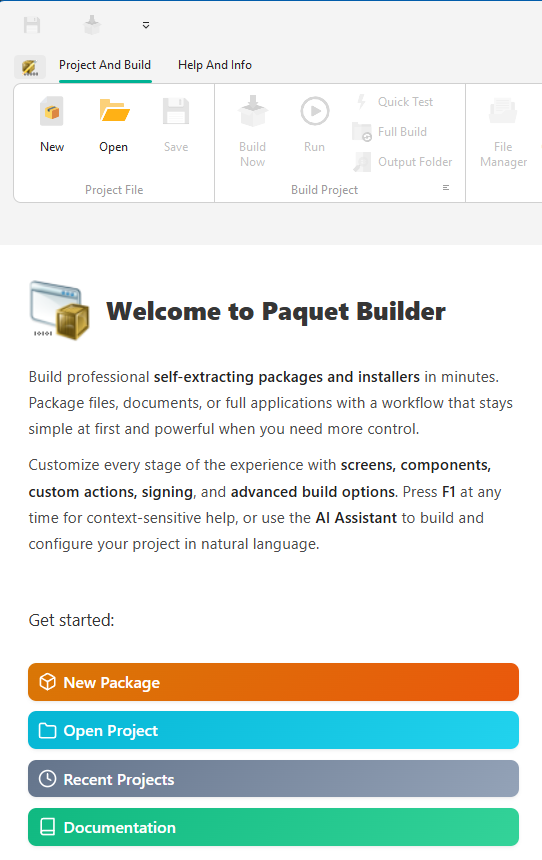
Paquet Builder welcome screen listing recent projects and options to create a new installer, SFX archive or MSI
Welcome screen and project picker Getting started
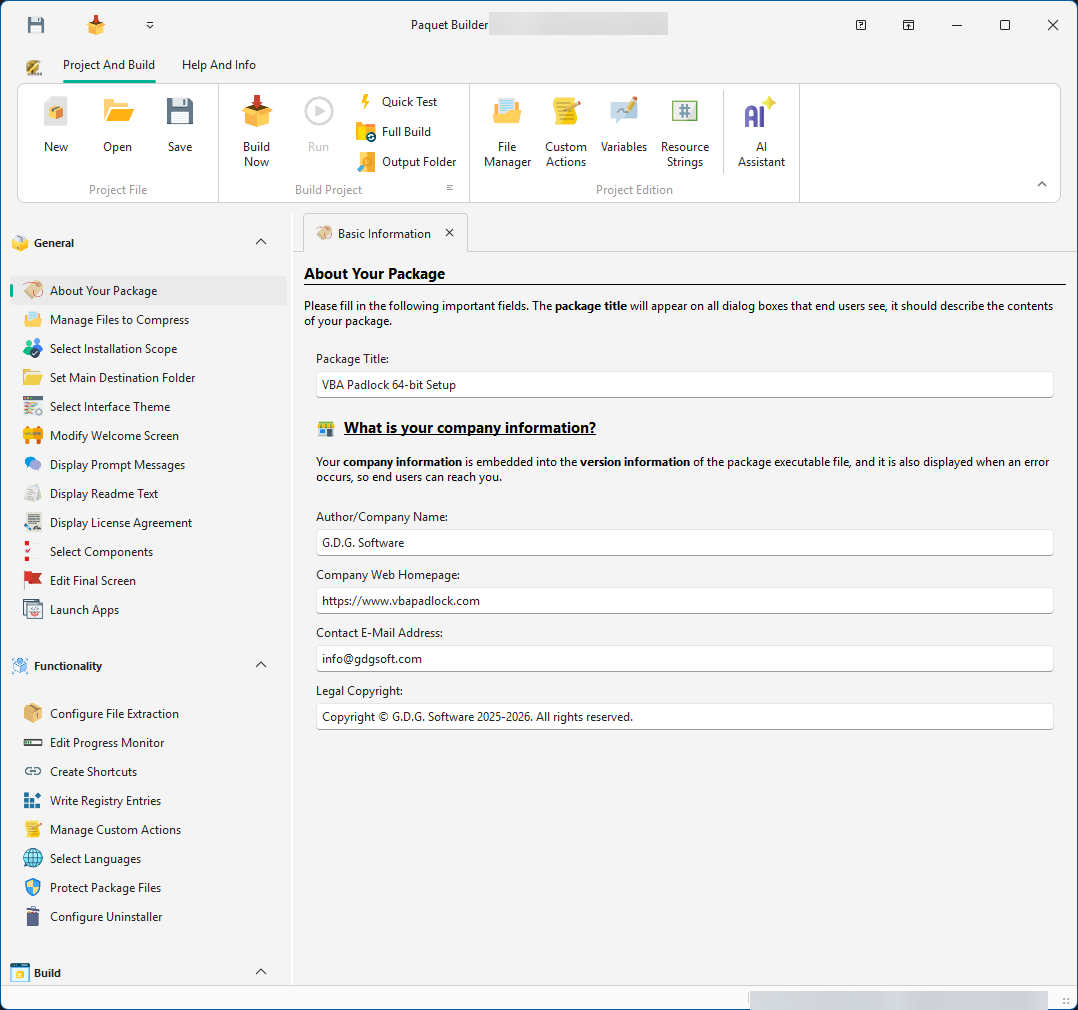
About Your Package panel in Paquet Builder where you set the package name, version, publisher and metadata
About Your Package — project metadata About Your Package
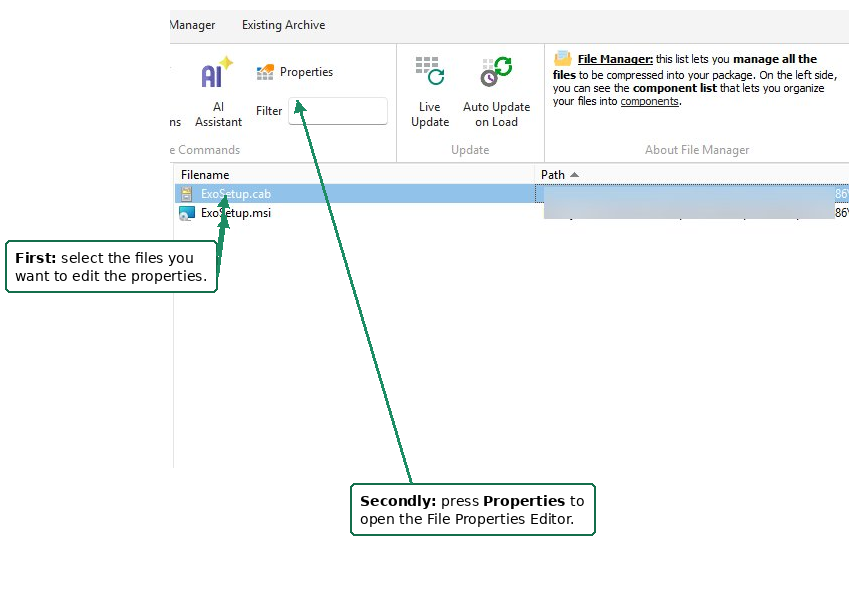
File Manager in Paquet Builder showing the tree of files and folders included in a package
File Manager — your package content at a glance File Manager
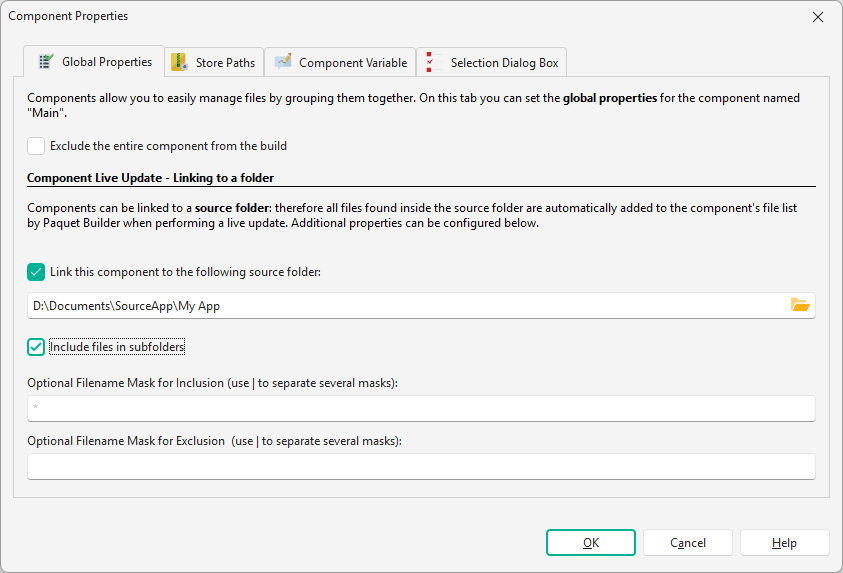
Component Properties dialog in Paquet Builder with Global Properties tab, group, size and default state
Component properties — configure each module Components

02 / 06

AI-powered authoring

1 featured + 2 more

An integrated AI Assistant and a dedicated MCP server help you configure projects, generate custom actions and automate tedious tasks — without leaving the IDE.

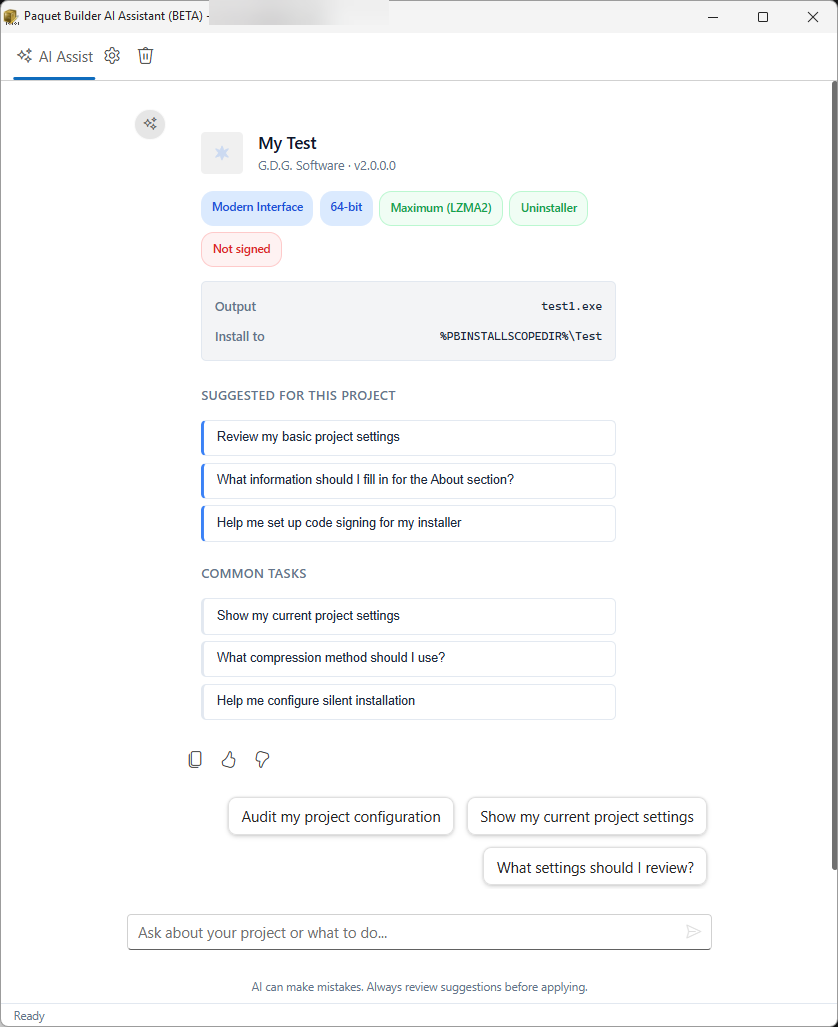
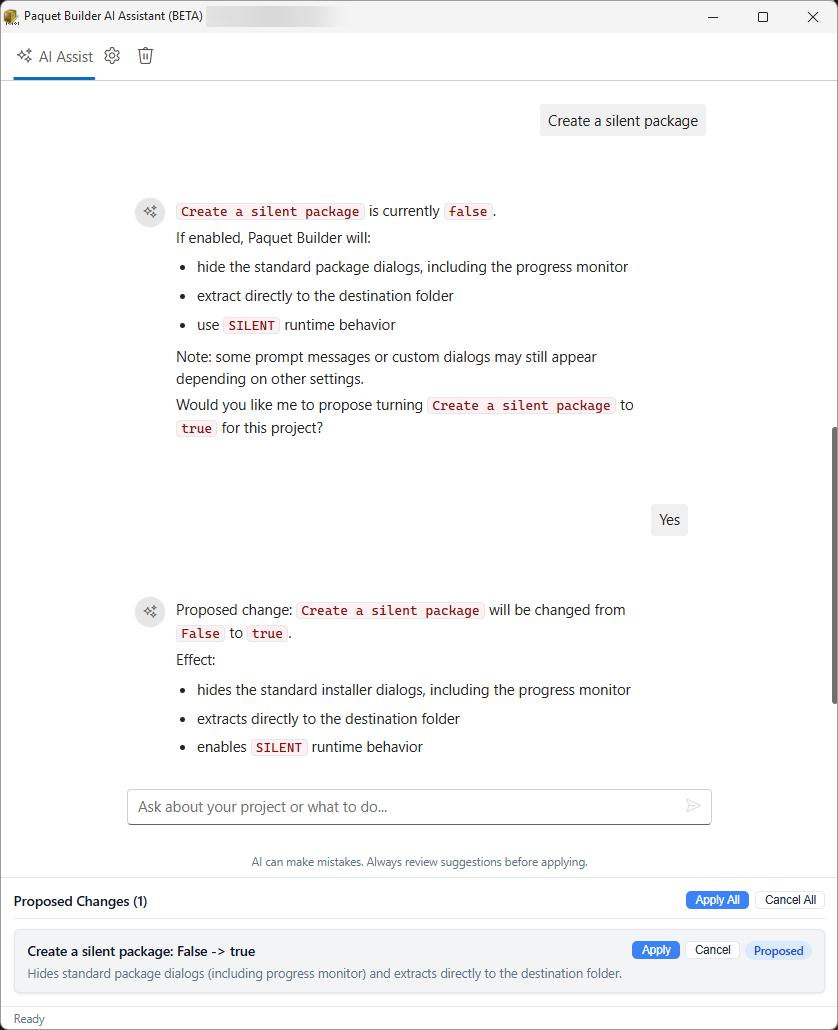
Paquet Builder AI Assistant window with a natural-language prompt and structured response about the current project
Featured

Ask the AI Assistant, stay in the IDE

Natural-language prompts understand your whole project. Generate custom actions, query the registry, draft a language file — without leaving the workspace.

Read: AI Assistant overview
AI Assistant action cards suggesting custom actions to add to the current installer project
AI action cards — one-click suggestions Using the AI Assistant
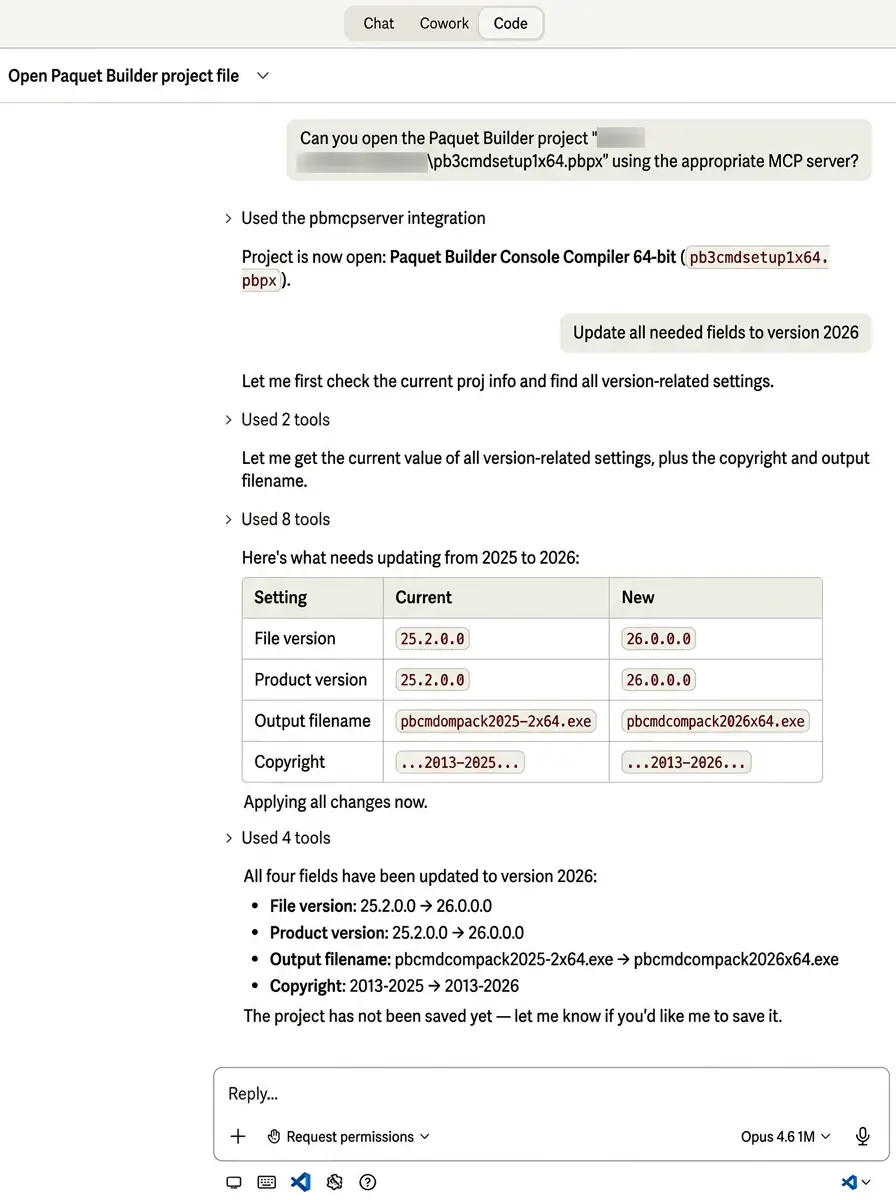
Claude Code chat session driving Paquet Builder through the MCP server to edit and compile a project
Drive Paquet Builder from Claude Code (MCP) MCP server

03 / 06

Build & code signing

1 featured + 6 more

Fine-grained control over compression, output format and signing — including Microsoft's cloud-based Azure Artifact Signing — so every release is ready for Windows.
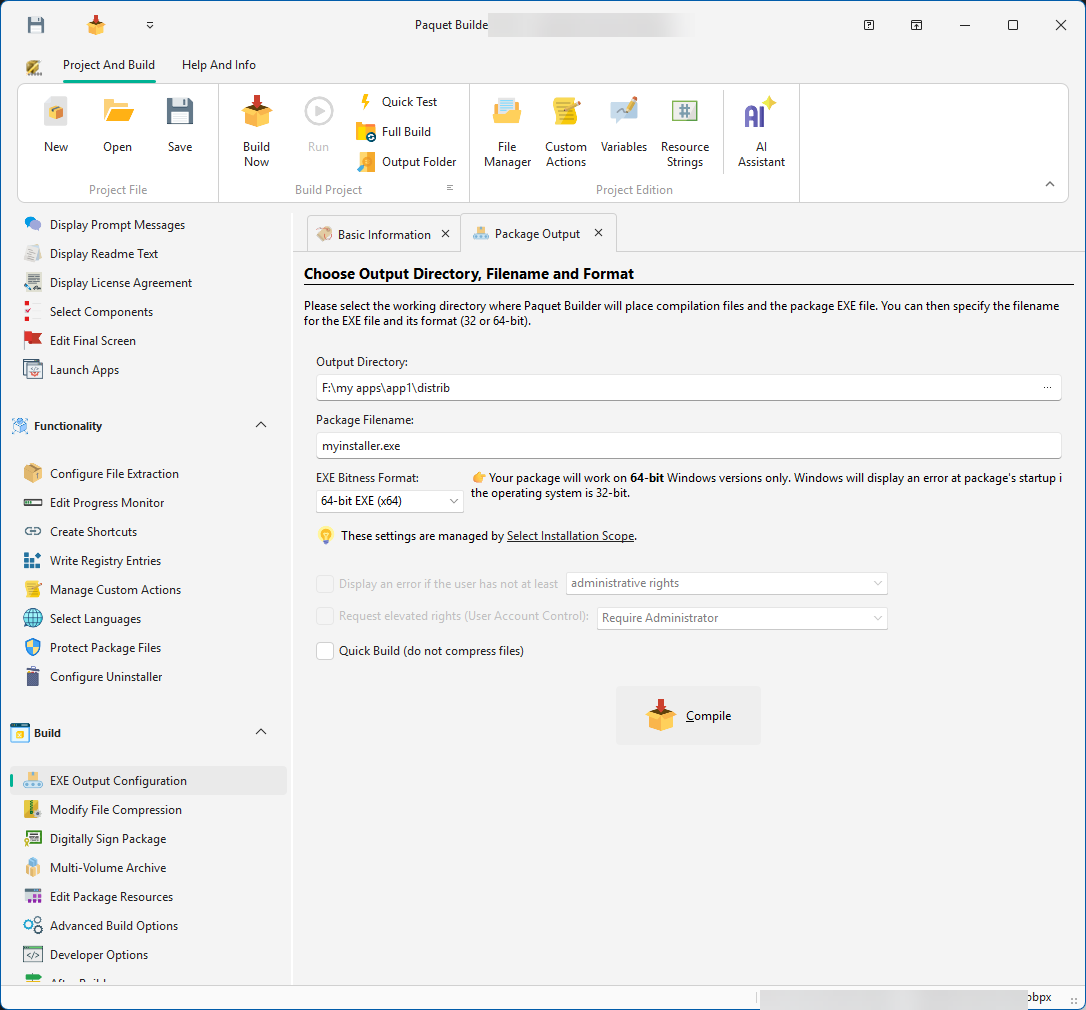
Package Output configuration in Paquet Builder with 32-bit, 64-bit and ARM64 build targets
Featured

Build for 32-bit, 64-bit and ARM64 in one click

One project, every Windows architecture. Toggle targets, choose output names, and ship all three with a single build.

Read: Package output
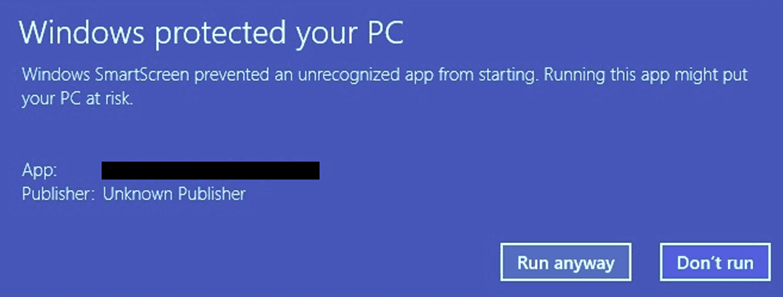
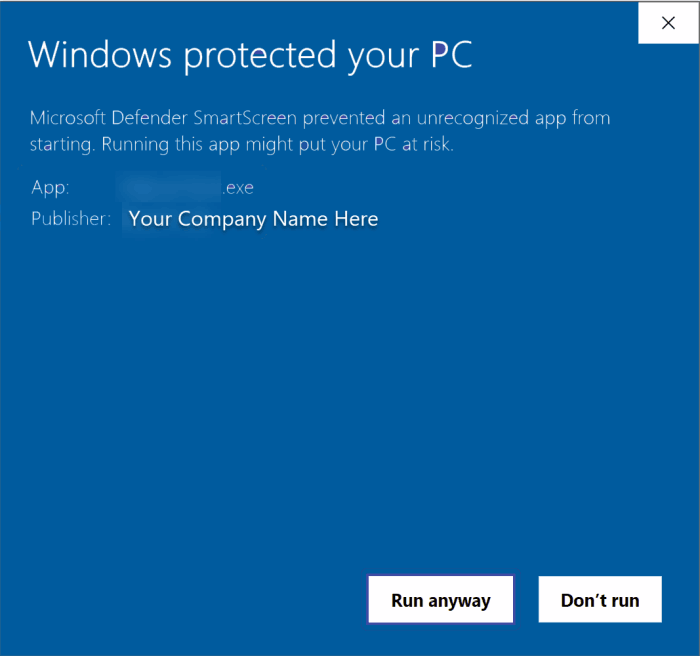
Before — Unsigned Windows SmartScreen warning for an unsigned installer, showing the 'Unknown publisher' prompt

SmartScreen blocks unknown publishers
After — Signed Windows SmartScreen accepting a properly signed Paquet Builder installer without a warning

Signed installer runs without warnings
Signing your installer eliminates the Windows SmartScreen warning that turns new users away. UAC & code signing
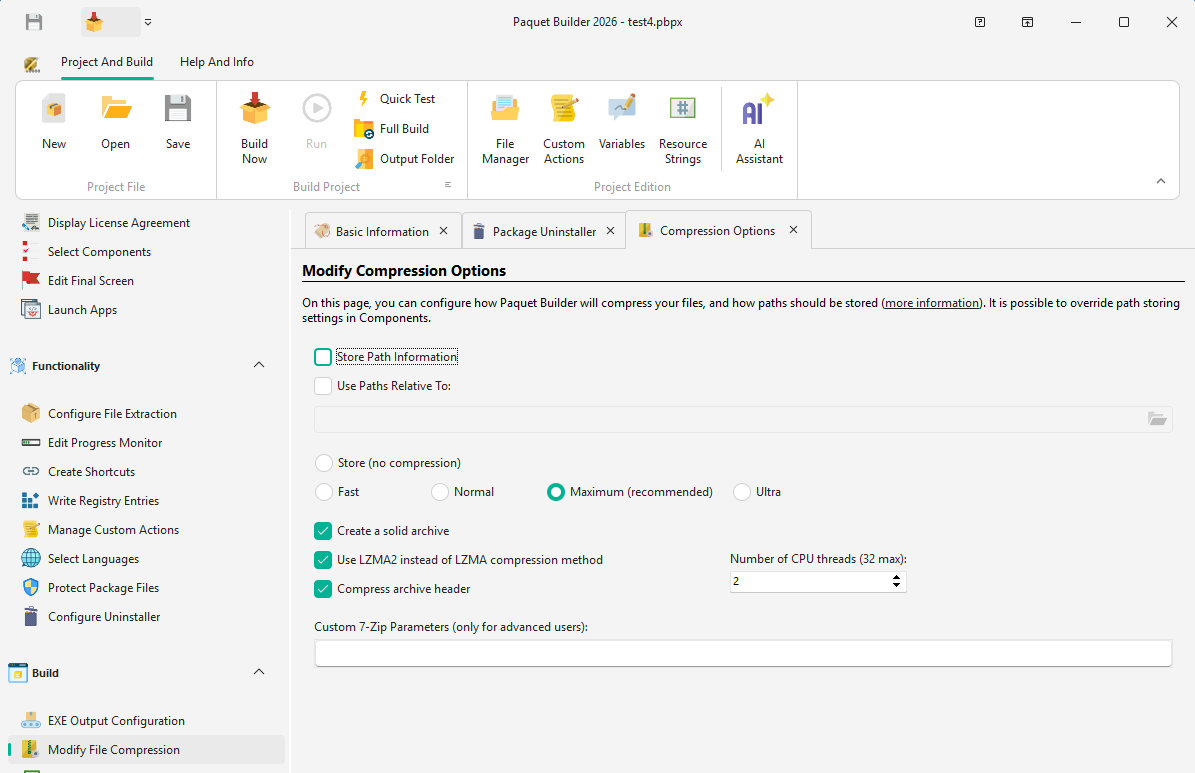
Compression options panel with LZMA2 and 7z settings and adjustable compression level
Compression options — 7z-based strength Compression options
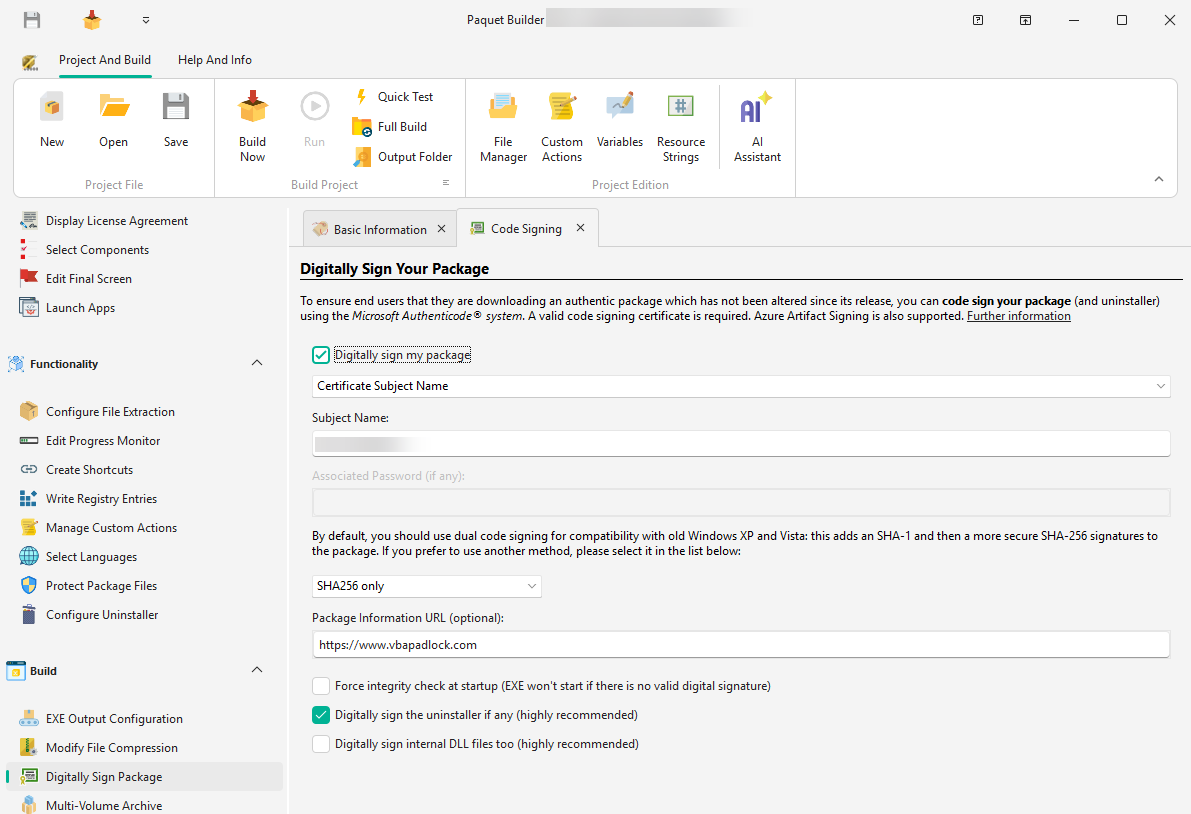
Digital signature configuration page letting you sign both the installer and inner executables
Digitally sign your installers Digital signature
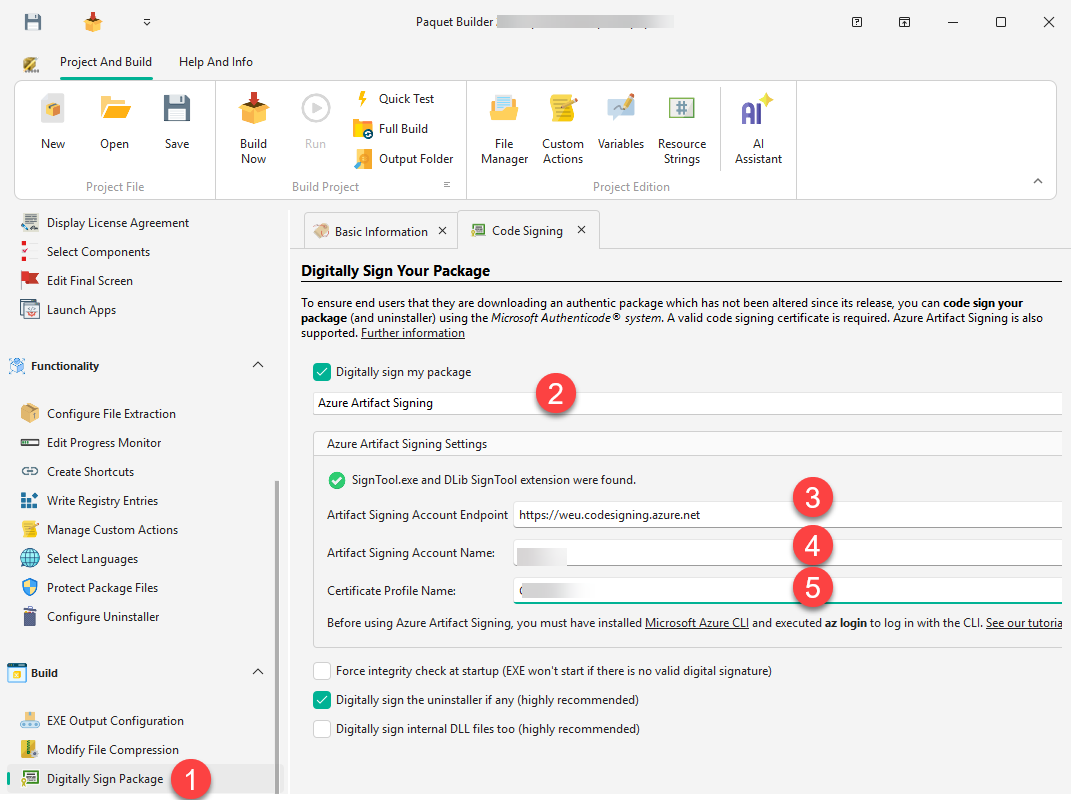
Azure Artifact Signing configuration in Paquet Builder with account, certificate profile and tenant settings
Azure Artifact Signing — cloud code signing Azure Artifact Signing
Edit Package Resources page to customize icon, version info and manifest of the output installer
Package resources — icon, version info, manifest Package resources

04 / 06

The installer experience

1 featured + 4 more

What your users actually see: polished, themeable runtime screens for every stage of installation, fully translatable and customizable.
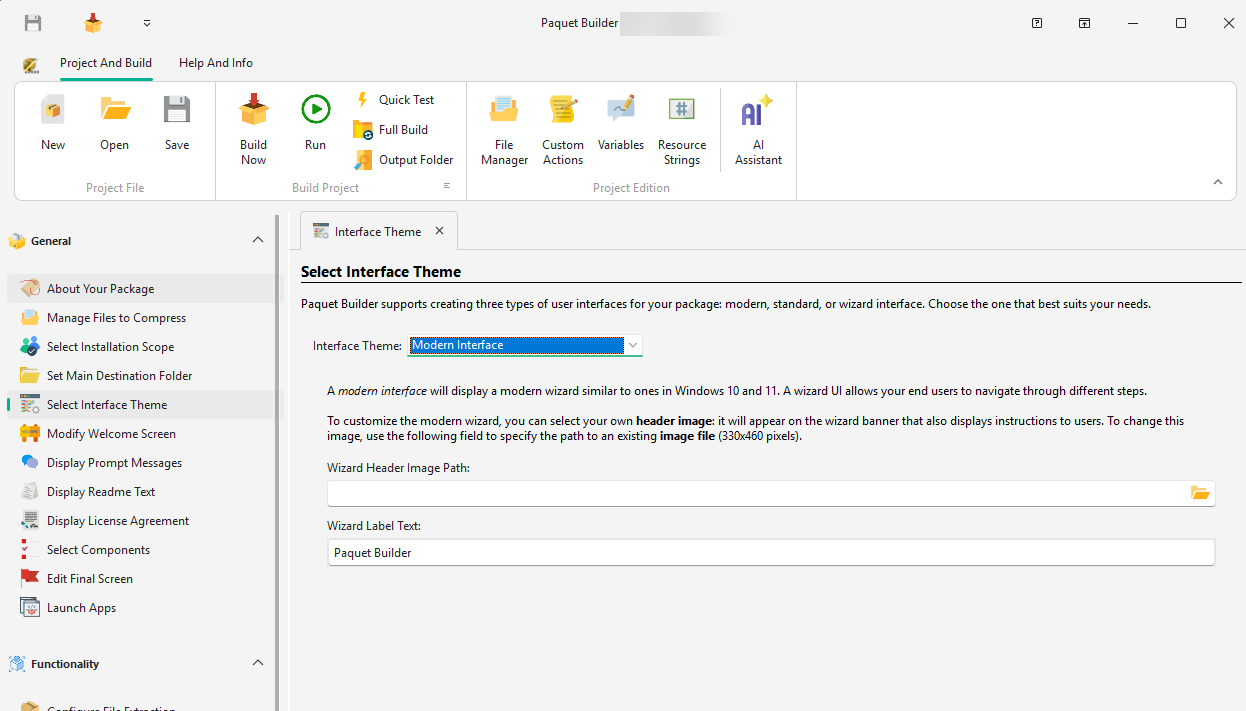
Interface Theme page in Paquet Builder letting you choose between modern, wizard and standard installer styles
Featured

Three installer styles, one project

Switch between modern, wizard and standard looks without rebuilding your content. Pick the style that fits your audience.

Read: Interface theme
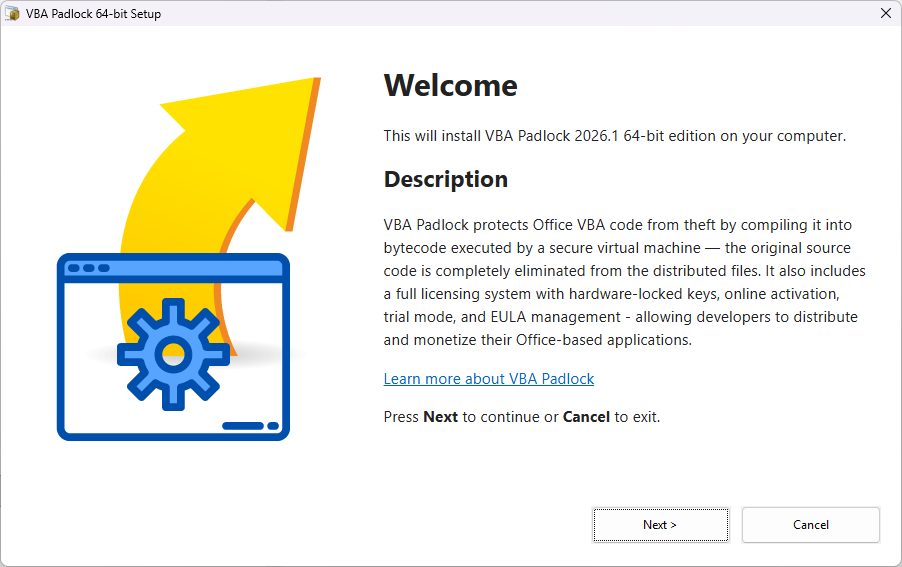
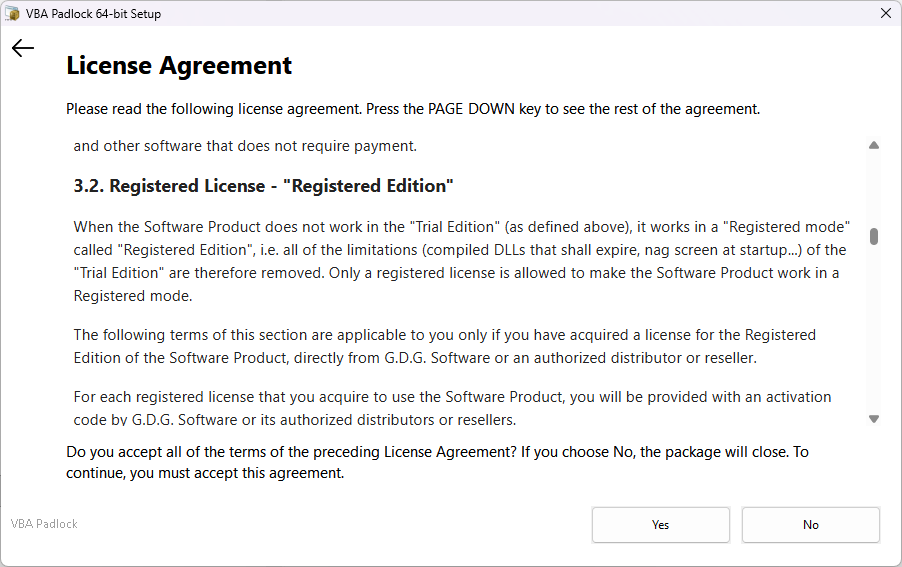
Installer welcome screen generated by Paquet Builder with product name, version and publisher
Welcome screen at runtime Welcome screen
License agreement dialog displayed by a Paquet Builder installer with accept and decline options
License agreement dialog License & readme
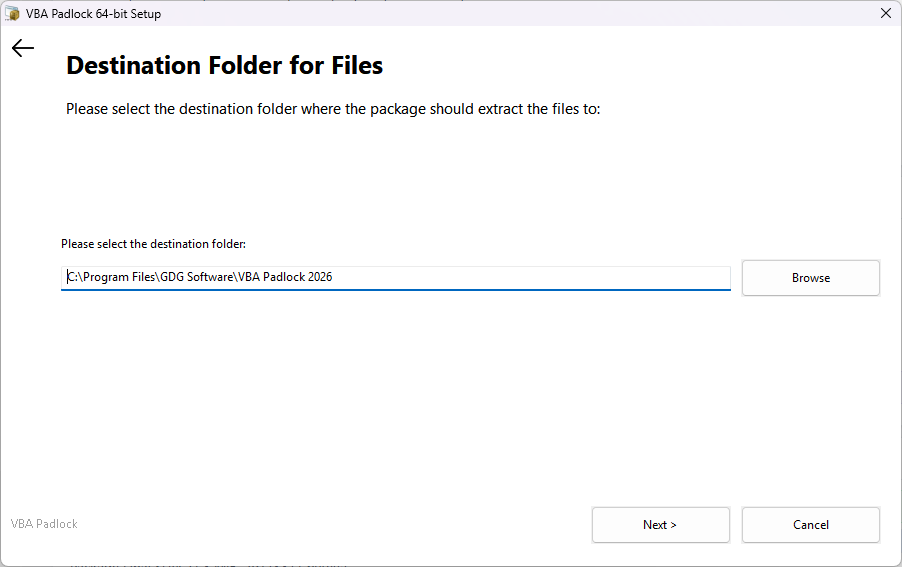
Destination folder dialog in a Paquet Builder installer letting the user choose the install path
Choose destination folder Destination folder
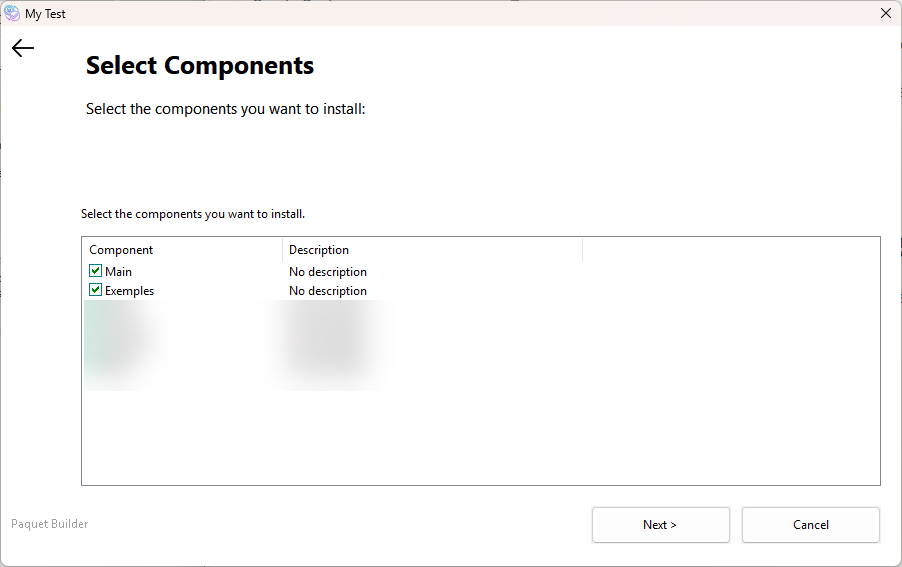
Component selection dialog at runtime showing checkboxes for optional installer components
Select components at runtime Select components

05 / 06

Customize every detail

1 featured + 4 more

Paquet Builder ships with dedicated editors for each part of the installer — welcome screens, rich text, languages, progress dialogs and more.
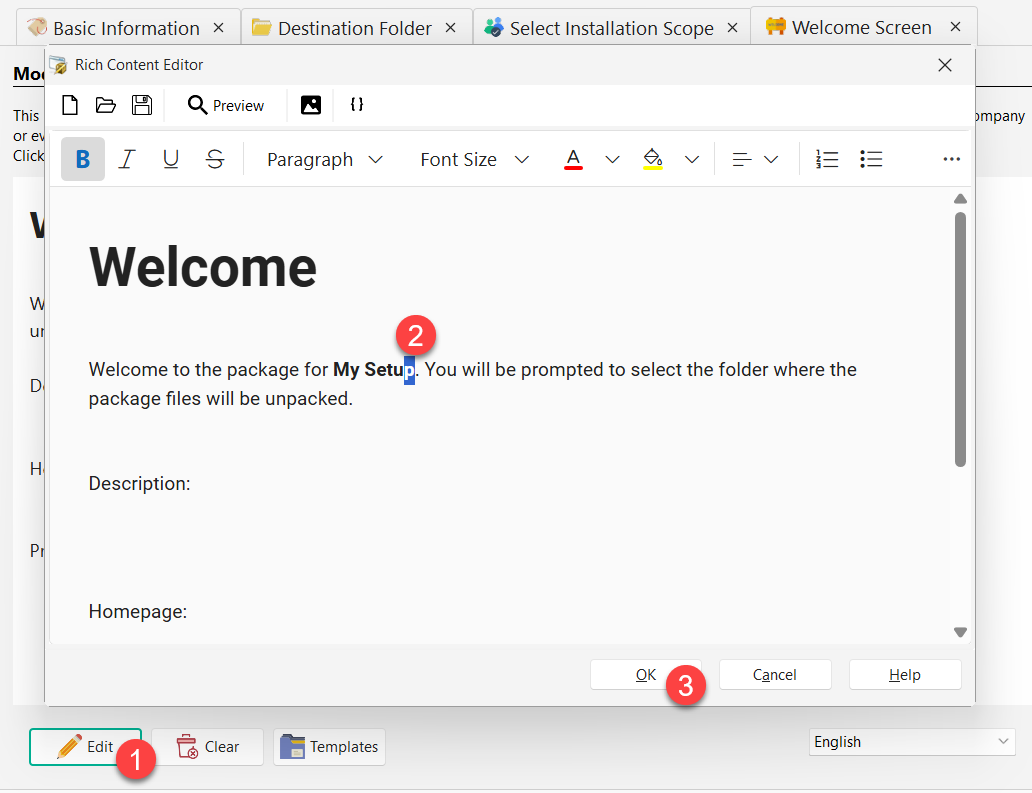
Rich Content Editor in Paquet Builder editing the installer welcome screen with inline formatting
Featured

Rich Content Editor for every installer screen

Inline formatting, images, links, colors — author welcome screens, license text and dialogs without touching a single line of HTML.

Read: Rich Content Editor
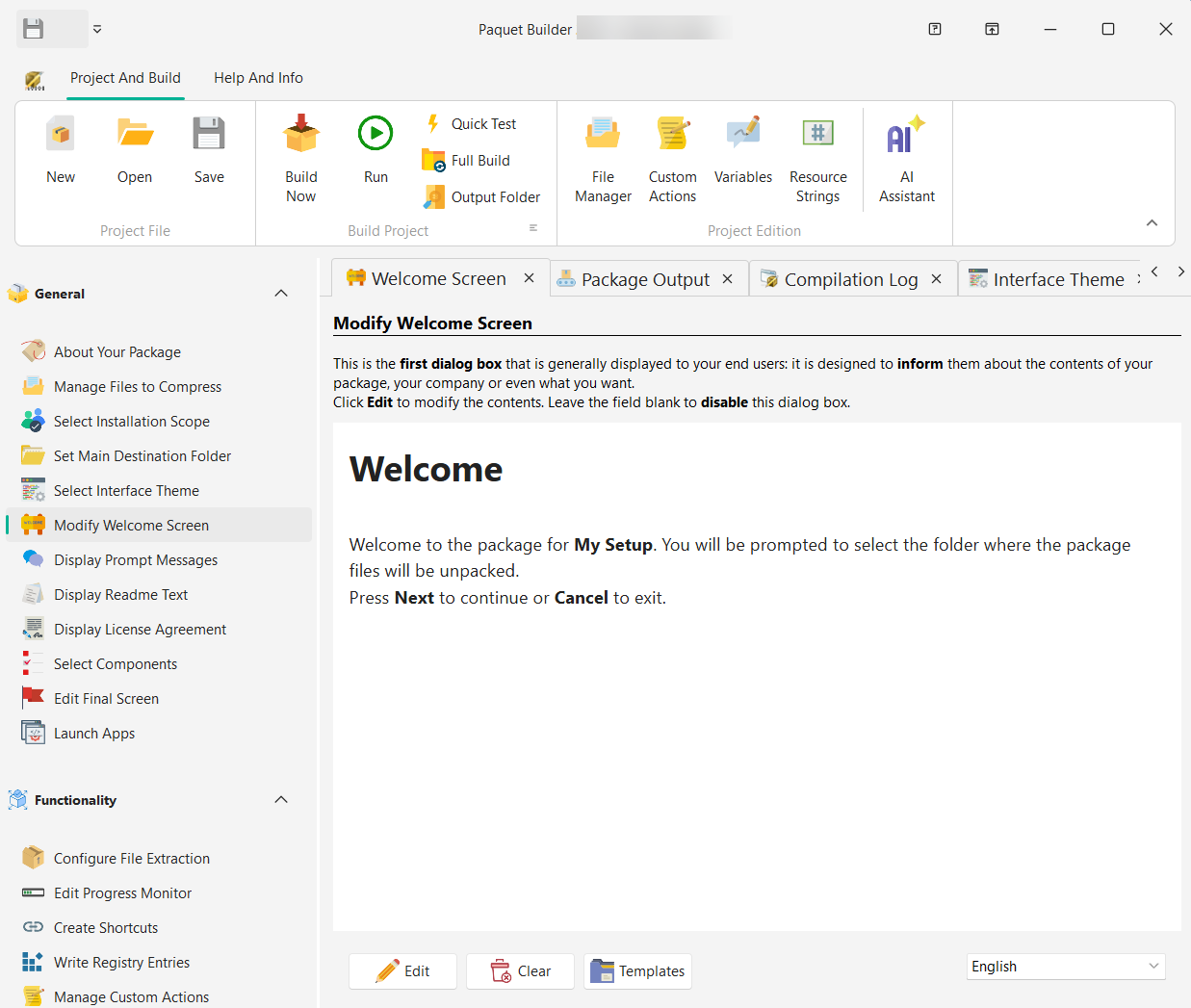
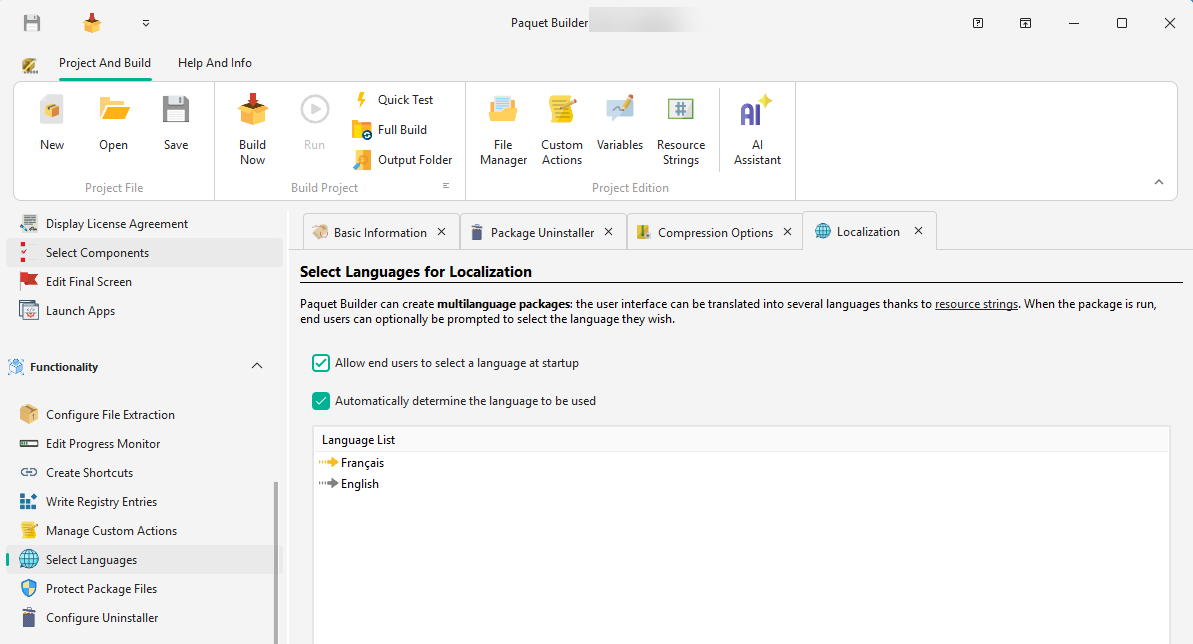
Modify Welcome Screen page in Paquet Builder with layout options and preview
Modify Welcome Screen Welcome screen
Language Manager in Paquet Builder listing available installer languages with a fallback selector
Language Manager — ship multilingual installers Language Manager
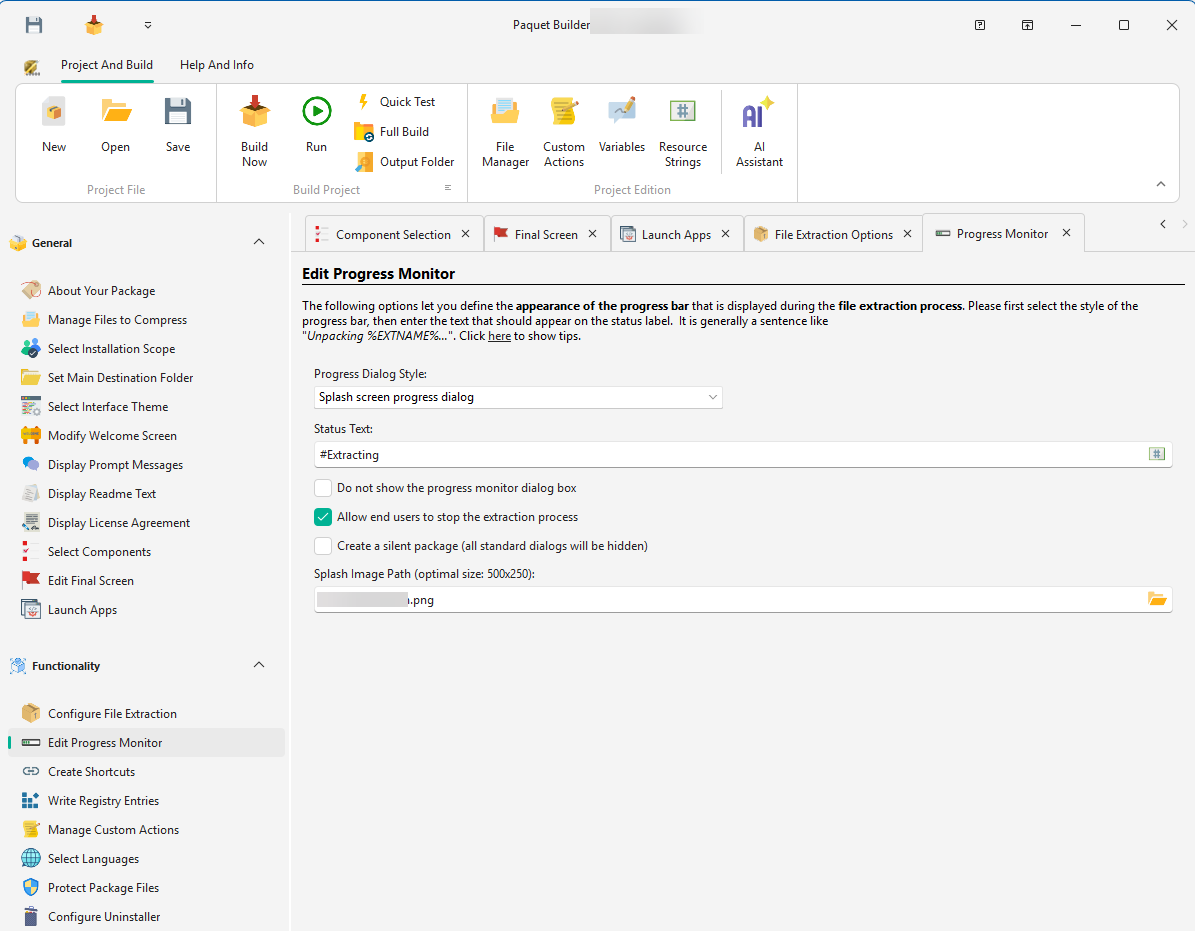
Edit Progress Monitor page in Paquet Builder with layout choices for the extraction progress dialog
Progress dialog — several styles Progress monitor
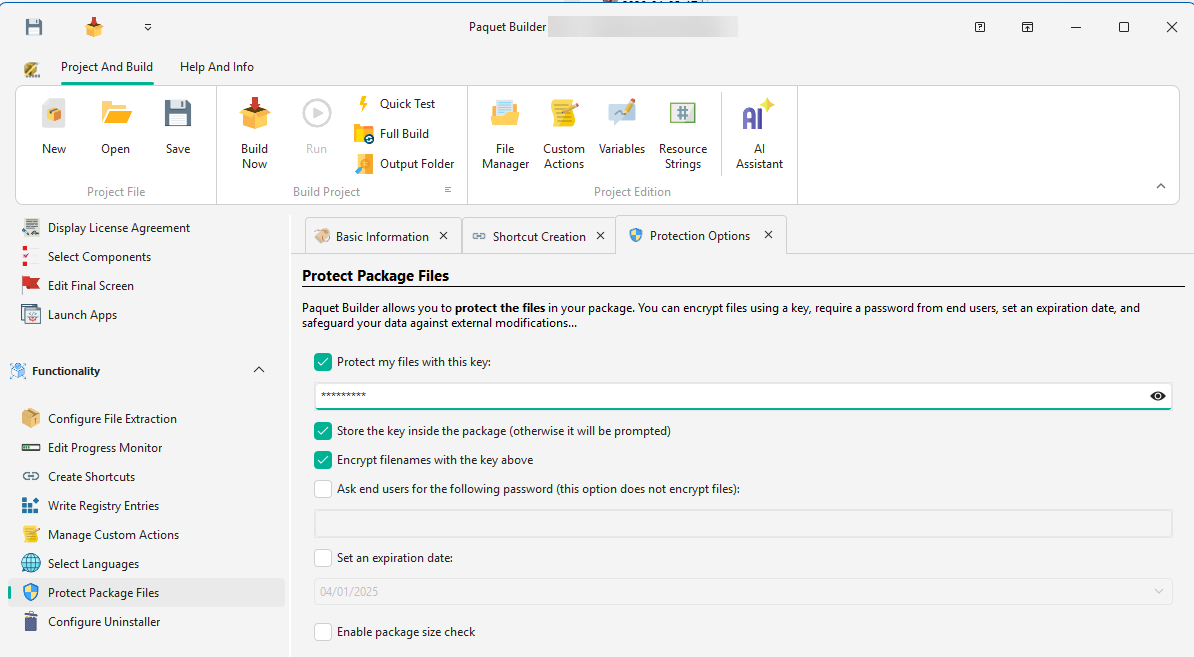
Protect Package Files page in Paquet Builder for encrypting archive content with a password
Protect files with a password Protect files

06 / 06

Power features

1 featured + 5 more

Custom actions, variables, registry entries and component-based installations give you everything you need to ship real, production-grade installers.
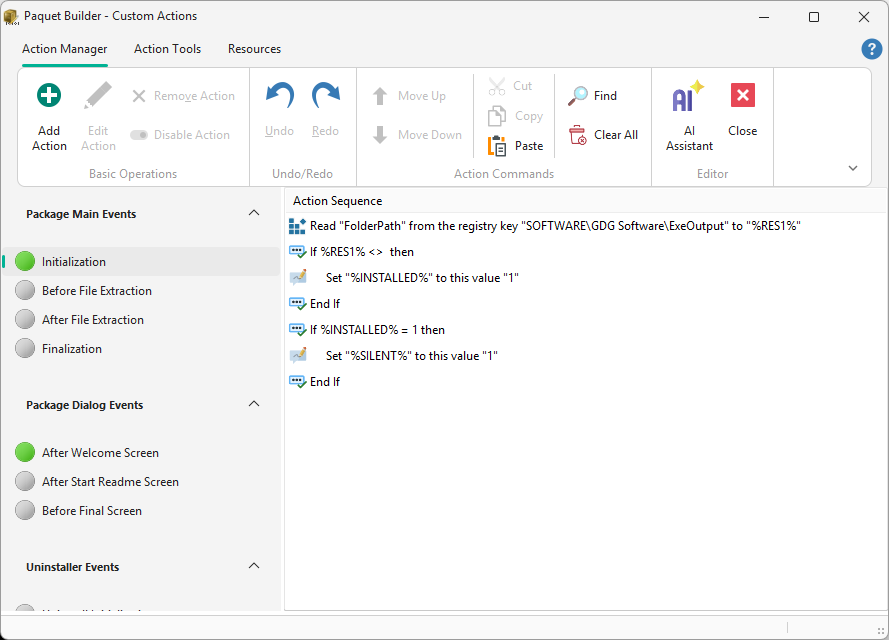
Custom Actions Manager in Paquet Builder listing actions grouped by installer event
Featured

Custom Actions — scriptable, without scripts

Group actions by installer event, reorder them by drag-and-drop, and unlock registry edits, conditional flows and shell commands — all from a visual editor.

Read: Custom actions
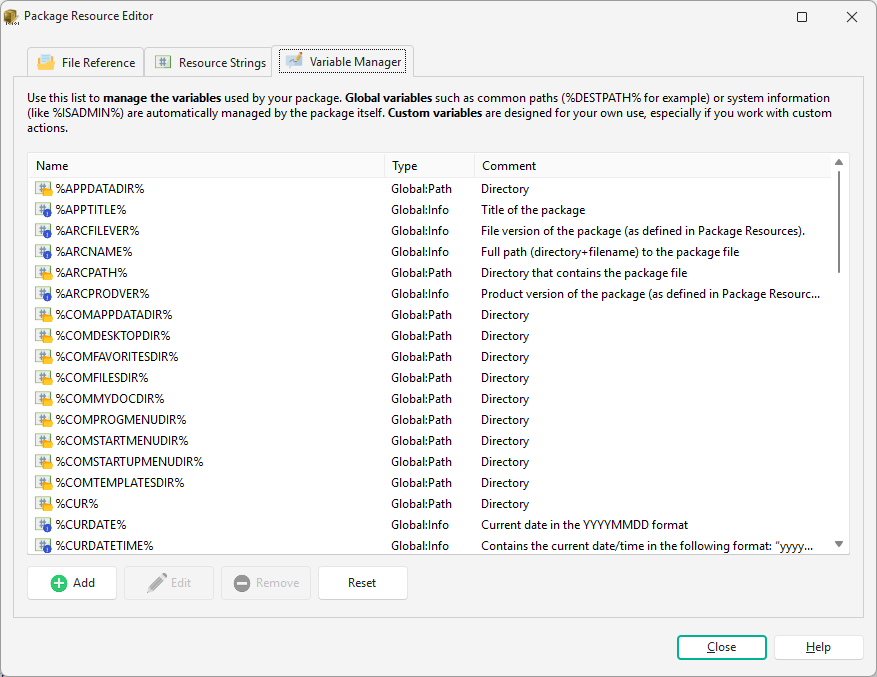
Variable Manager in Paquet Builder for defining installer variables and their default values
Variable Manager Variables
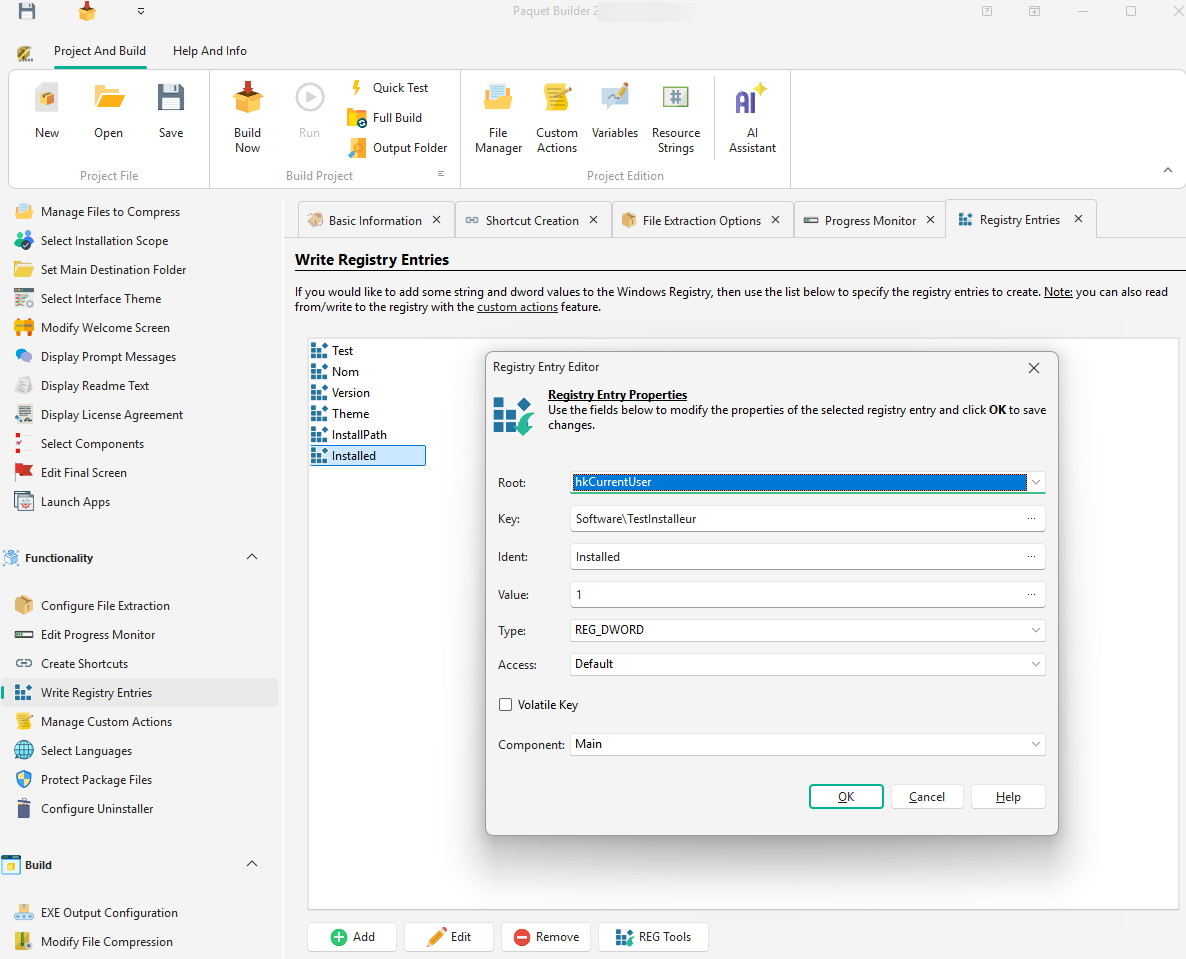
Registry Manager in Paquet Builder for adding, editing and removing Windows registry entries during install
Registry Manager Registry entries
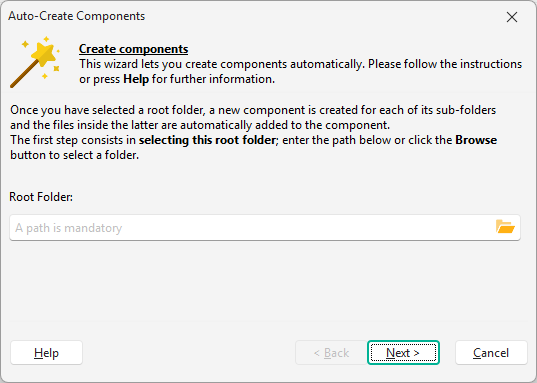
Component Wizard in Paquet Builder automatically generating components from a folder tree
Auto-create components from a folder Auto-create components
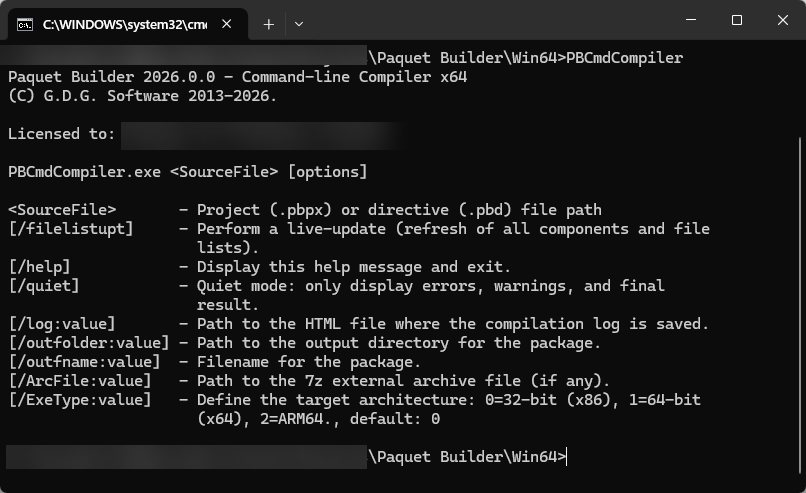
Paquet Builder console compiler running in a Windows terminal for batch and CI/CD builds
Console compiler — batch & CI/CD Console compiler
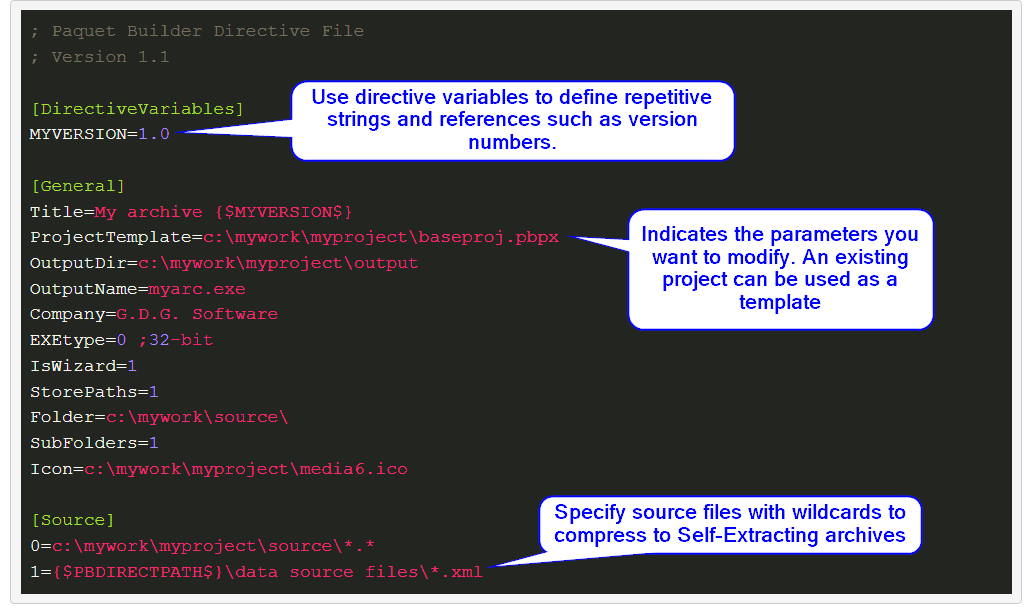
Directive file open in a text editor showing Paquet Builder project settings as plain-text directives
Directives — project as plain text Directives

Ready when you are

Try every feature for free.

Download the free edition and rebuild any screen you just saw. The trial includes the full IDE, the AI Assistant, code signing, and the console compiler — with no time limit on evaluation.