System Paths
Locations like %WIN%, %SYS%, %TMP%, %APPDATADIR%, and hundreds more, all initialized automatically at runtime.
Variables are dynamic containers for system paths, user inputs, or runtime values. They make your installer adapt to different environments without hardcoding paths or settings.
Variables are identified by a name enclosed in % signs (e.g. %DESTPATH%). When the package runs, each identifier is replaced by its actual value.
| Feature | Requirement |
|---|---|
| Syntax | Must start and end with % (e.g. %MYVAR%) |
| Naming | Letters, numbers, and underscores only (no spaces or special characters) |
| Reserved | Names starting with PB are reserved for internal use |
| Data Type | Unicode text (max 4096 wide characters) |
| Booleans | Logic handled via 1 (True) and 0 (False) |
Click the Variables button 
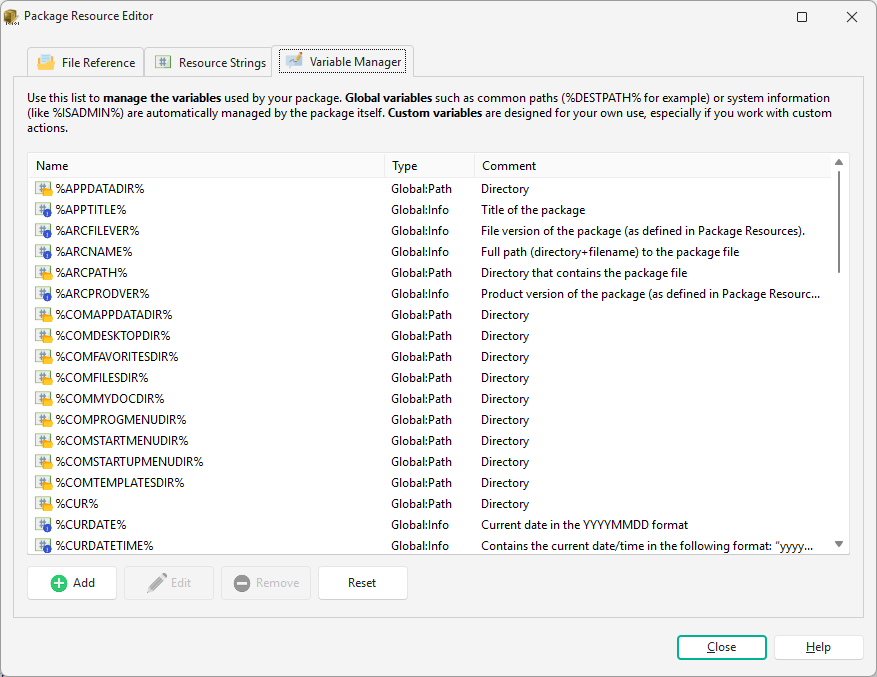
Click Add to create a new variable.
Configure the Name, Type (Path, String, or Boolean), and Initial Value.
Click OK to register the variable.
System Paths
Locations like %WIN%, %SYS%, %TMP%, %APPDATADIR%, and hundreds more, all initialized automatically at runtime.
Package Information
Details about the installer: %APPTITLE%, %ARCNAME%, %ARCFILEVER%, %ARCPRODVER%, etc.
Installation Scope
Scope-aware paths that adapt to per-user or all-user installations: %PBINSTALLSCOPEDIR%, %PBSHORTCUTROOT%, %PBDESKTOPROOT%.
Runtime State
Flags and values set during execution: %DESTPATH%, %ISADMIN%, %SILENT%, %TOTALEXTFILE%, etc.