Line breaks
Use /$ to insert a line break in the message text. For example: Line 1/$Line 2.
Paquet Builder can display standard Windows message boxes to your end users at two key moments: before extraction begins and after it completes. These are simple Yes/No or informational prompts. Leave the fields blank to disable them.
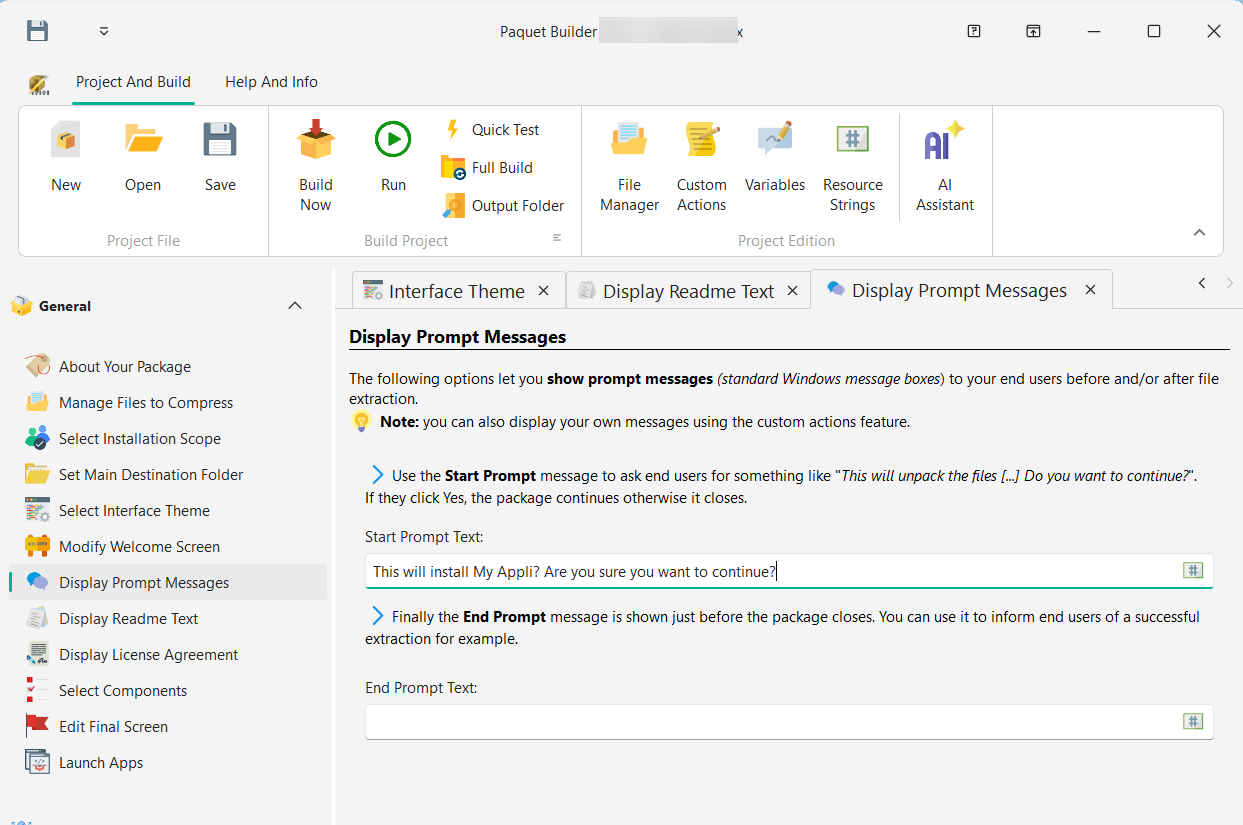
Shown immediately after the user launches your package, before any extraction takes place. The user must click Yes to proceed or No to cancel.
Typical example:
This will install My Application 1.0./$Do you want to continue?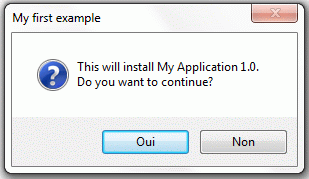
This is useful to give users a clear confirmation step before files are extracted to their machine.
Shown just before the package closes, after extraction completes successfully. This is a simple informational message; the user clicks OK to dismiss.
Typical example:
Extraction successfully completed!Use this to confirm that everything went well, or to provide brief follow-up instructions.
Line breaks
Use /$ to insert a line break in the message text. For example: Line 1/$Line 2.
Resource strings
Click the button next to each text box to insert a resource string for multilanguage support.
Variables
Include variables like %APPTITLE%, which are replaced at runtime with their actual values.
Custom messages
Need more than two prompts, or conditional logic? Use custom actions to display additional message boxes at any point during execution.