File destinations
Assign individual destination paths to specific files or groups.
Every package starts with a project file (.pbpx). This file stores all of your settings: files to include, destination paths, screens, build options, and more. You can save, reopen, and share project files at any time.
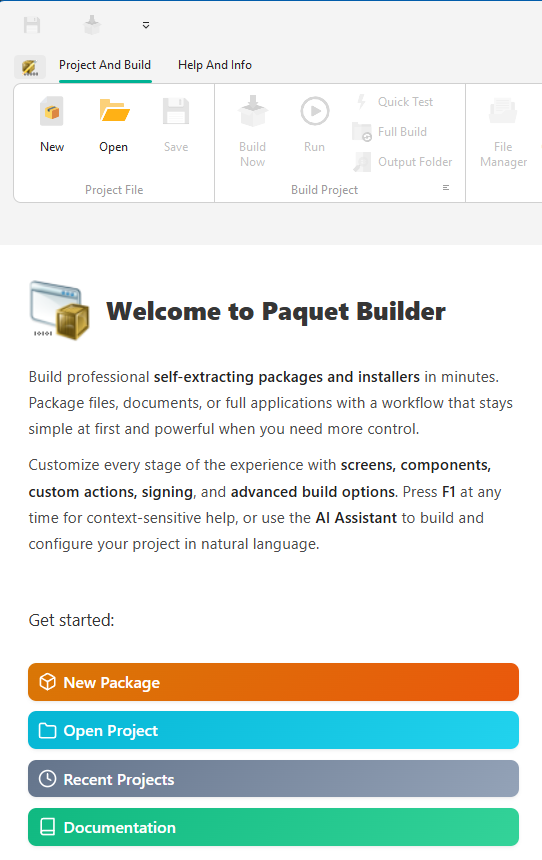
Open Paquet Builder and click New Package on the Welcome Screen, or select New Project from the Application Menu at the top-left.
Select a package type (see below), then click Continue.
Fill in the basic information fields to get started.
The default choice, recommended in 95% of cases.
A Standard Package extracts files into a folder chosen by you or the end user. It is ideal for distributing files, programs, and documents, and it supports the broadest set of features:
File destinations
Assign individual destination paths to specific files or groups.
Shortcuts
Create Start Menu and Desktop shortcuts automatically.
Uninstaller
Generate a built-in package uninstaller with Add/Remove Programs registration.
Full runtime logic
Use custom actions, registry operations, conditions, and user prompts.
For wrapping an existing installer into a single .exe.
Also known as “Package for a Multimedia Program,” this type is designed for software developers who already have a setup program (MSI, InstallShield, PowerPoint Viewer, etc.) and want to package it for easy distribution over the Internet, networks, or removable media.
How it works:
For creating a standard 7-Zip archive (.7z).
This type compresses your files into a traditional 7-Zip archive without self-extracting functionality. A third-party tool such as 7-Zip is required to unpack the contents.
| Feature | Standard Package | Setup Routine | Archive File |
|---|---|---|---|
Self-extracting .exe | Yes | Yes | No (.7z) |
| Custom destination folder | Yes | Temporary only | – |
| Welcome screen and dialogs | Yes | Yes | – |
| Shortcuts and uninstaller | Yes | – | – |
| Custom actions and registry | Yes | Limited | – |
| File-level destinations | Yes | – | – |