Enable Silent Mode
Activates silent mode (no dialogs) using the /s command-line switch.
Templates let you reuse predefined groups of actions across projects. They simplify repetitive workflows by offering ready-made solutions you can import in one click.
Open the Custom Action Manager.
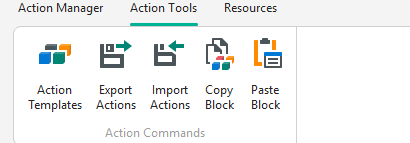
Navigate to Action Tools > Action Templates.
Select a template from the list. Each includes a title and description.
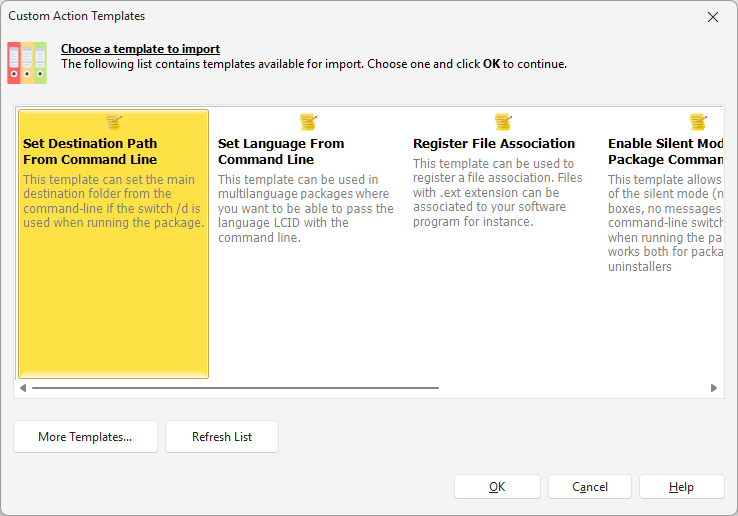
Click OK to import its actions into the selected event.
Enable Silent Mode
Activates silent mode (no dialogs) using the /s command-line switch.
Set Destination from CLI
Sets the main destination folder using the /d switch.
Set Language from CLI
Configures the language using the /LCID switch.
Register File Association
Associates a file extension with your software.
Retrieve Windows Version
Gets the version and build number of Windows 10/11.
Check Minimum Windows
Verifies the end user’s system meets a required Windows version.
Export actions: in the Custom Action Editor, use Action Tools > Export Actions and save as XML.
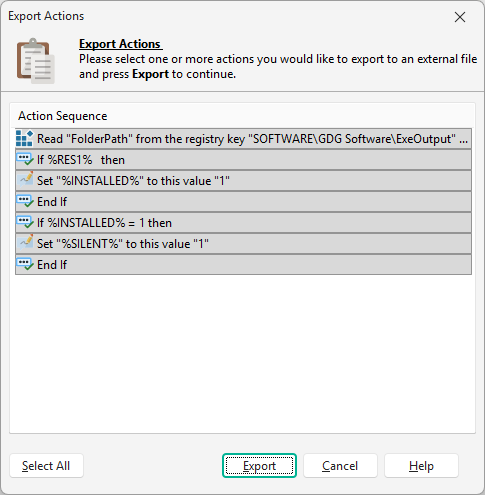
Add metadata: open the XML file and add template nodes:
<pbgroup> <templatename>Register File Association</templatename> <templatedesc>Registers a file association for .ext files.</templatedesc> ...Place the file: move the XML to one of the template directories below, then click Refresh List.
| Location | Path |
|---|---|
| Application | Paquet Builder\Actions |
| User profile | %APPDATA%\GDG Software\Paquet Builder\Actions |
Share your templates with the community on the GDG Software Forum.