Exclude the entire component from the build
Prevents the component from being compiled into the package. Useful for managing editions (Trial vs. Full) or automated builds with Directives.
Components are logical groups of files within your package. They let you organize complex projects and give end users the flexibility to select optional features during installation.
Manage components through the Component Manager within the File Manager.
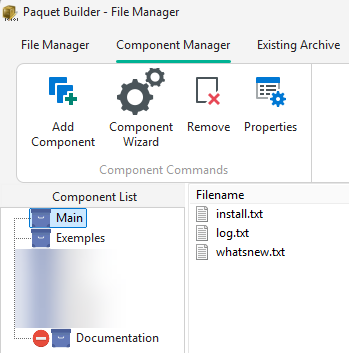
Double-click a component or click Properties to open the Component Properties dialog. It is organized into four tabs.
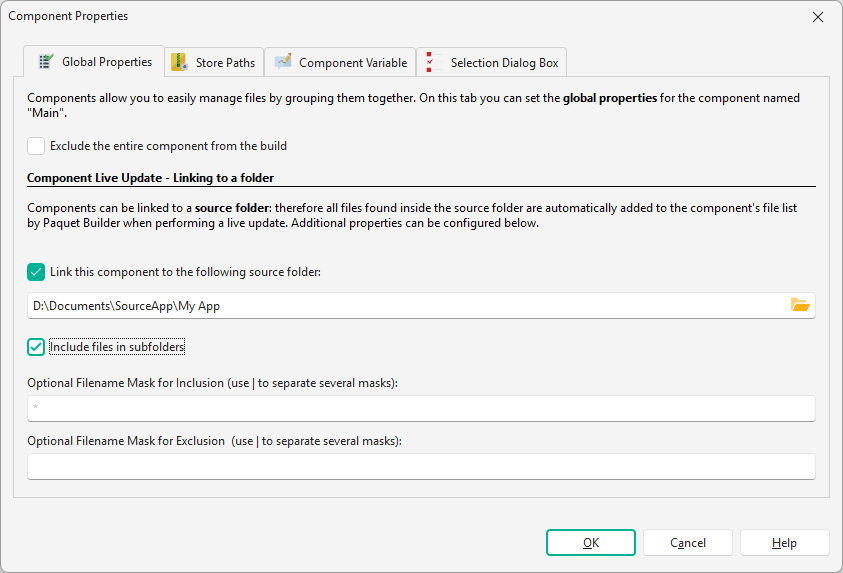
Exclude the entire component from the build
Prevents the component from being compiled into the package. Useful for managing editions (Trial vs. Full) or automated builds with Directives.
Link the component to a source folder on disk. When a live update is performed, Paquet Builder scans the folder and automatically synchronizes the component’s file list, adding new files and removing deleted ones.
| Setting | Description |
|---|---|
| Link this component to the following source folder | Enable the link and specify the source folder path. |
| Include files in subfolders | When checked, files in nested subfolders are also included. |
| Filename Mask for Inclusion | Only files matching this pattern are added (e.g. `*.exe |
| Filename Mask for Exclusion | Files matching this pattern are skipped (e.g. `*.pdb |
Controls how path information is stored in the package for files in this component. Four options are available:
| Option | Description |
|---|---|
| Use the default settings from the “Compression Options” page | Inherits the global path storage setting. |
| Do not store path information | Only filenames are stored; all files extract to the same folder with no subdirectory structure. |
| Store paths relative to the source folder | Paths are stored relative to the linked source folder defined in Global Properties. Only available when a source folder is linked. |
| Keep path information relative to a root folder | Paths are stored relative to a custom root folder that you specify. |
Each component is associated with a Boolean variable (typically prefixed VCOMP). The package evaluates this variable at runtime to determine whether the component’s files should be extracted.
| Setting | Description |
|---|---|
| Component Variable | The variable name (required). Can be set via custom actions or end-user selection. |
| Install the component by default | When checked, the variable defaults to 1 (True) and files are extracted unless changed at runtime. |
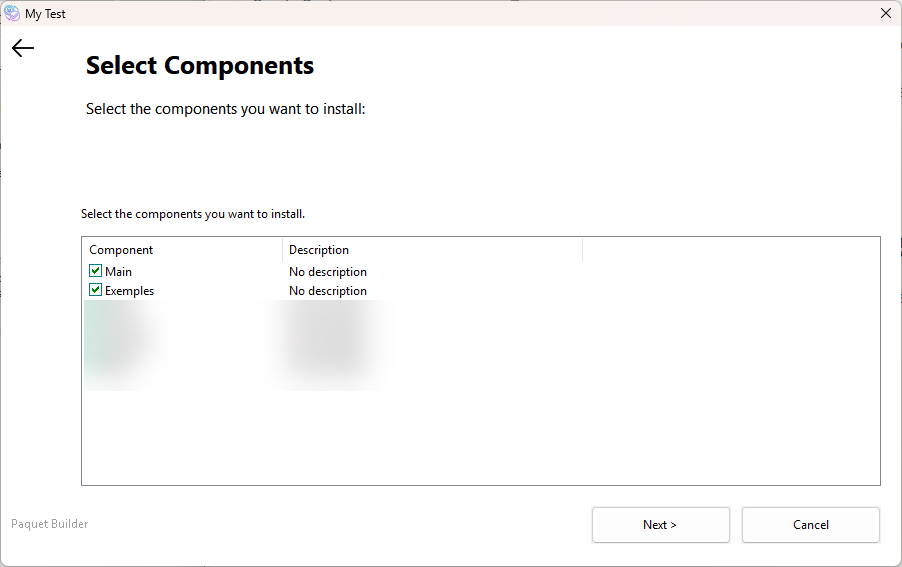
Configure how the component appears in the Component Selection Dialog:
| Setting | Description |
|---|---|
| Component Title | A short label describing the component (e.g. “Additional Movies”). Supports resource strings. |
| Component Description | A longer explanation of the files the component installs. Supports resource strings. |
| Allow users to decide | When enabled, the component appears in the selection list with a toggleable checkbox. When disabled, the component is hidden from the list. |
| Required component | The component appears in the list but the checkbox is locked; end users cannot deselect it. |
Custom destinations
Assign individual files to different folders (e.g. %SYS%, %APPDATADIR%) via File Properties.
AI-powered organization
Use the AI Assistant to manage components via natural language: “Create a component for Plugins and link it to C:\Dev\Plugins.”