Destination Folder
Current User: %LOCALAPPDATA%\Programs\YourApp
All Users: %PROGFILESDIR%\YourApp
Installation scope determines who the installer targets on the machine. This single setting automatically controls destination paths, shortcut locations, registry root keys, and User Account Control (UAC) elevation requirements.
Access these settings from the Installation Scope page in the navigation panel.
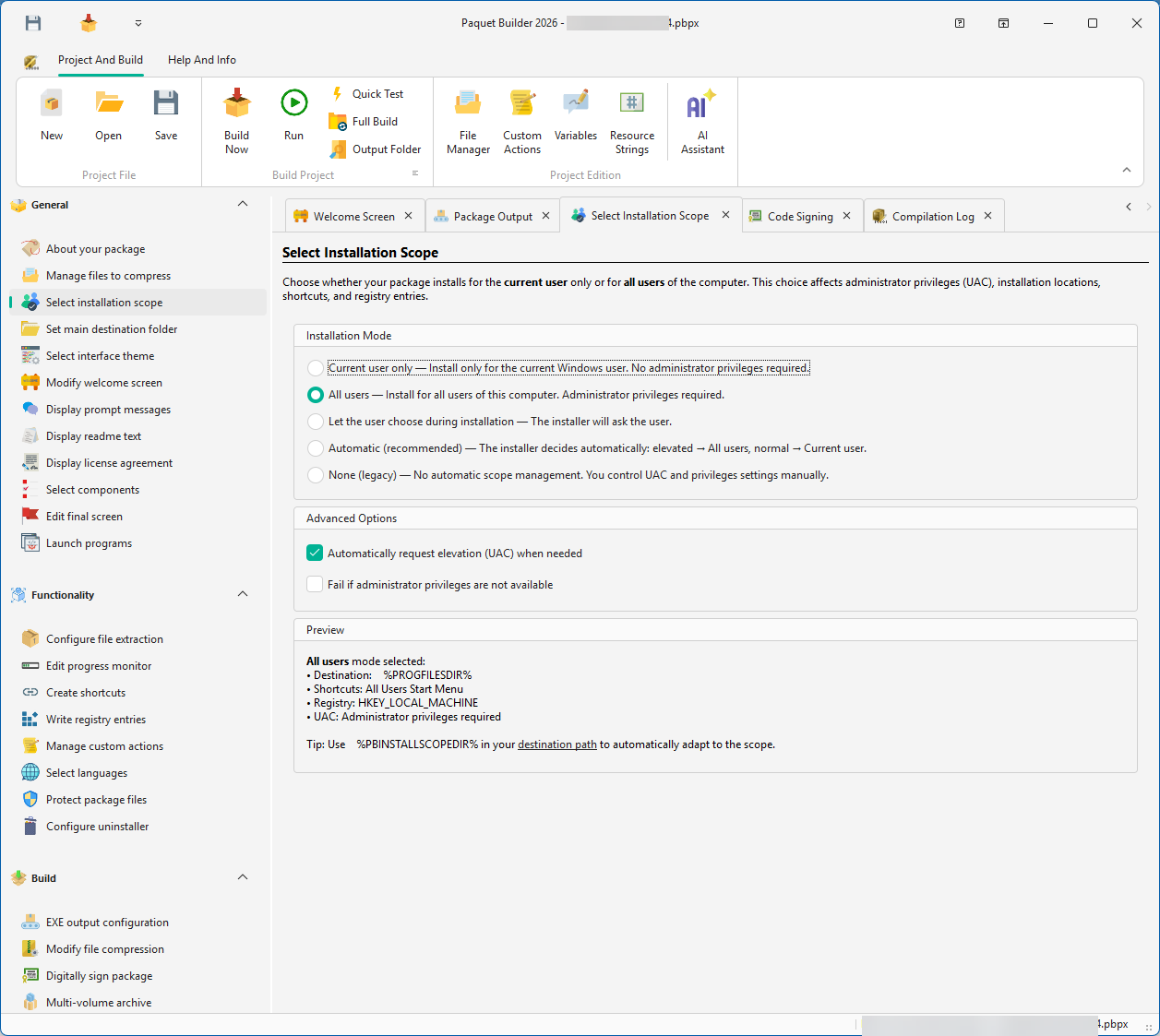
Targets the active user’s profile. No administrator rights required.
| Setting | Value |
|---|---|
| Destination | %LOCALAPPDATA%\Programs |
| Shortcuts | Per-user folders |
| Registry root | HKEY_CURRENT_USER |
| UAC elevation | Not required |
Best for “no-install” style apps that don’t need system-level access.
Targets a shared location for every user on the machine. Requires administrator rights.
| Setting | Value |
|---|---|
| Destination | %PROGFILESDIR% |
| Shortcuts | Common (shared) folders |
| Registry root | HKEY_LOCAL_MACHINE |
| UAC elevation | Required |
Mandatory for services, drivers, or apps that must be available to everyone.
Displays a dialog at runtime, letting the end user choose between Current User and All Users. Provides the best balance of flexibility and ease of use.
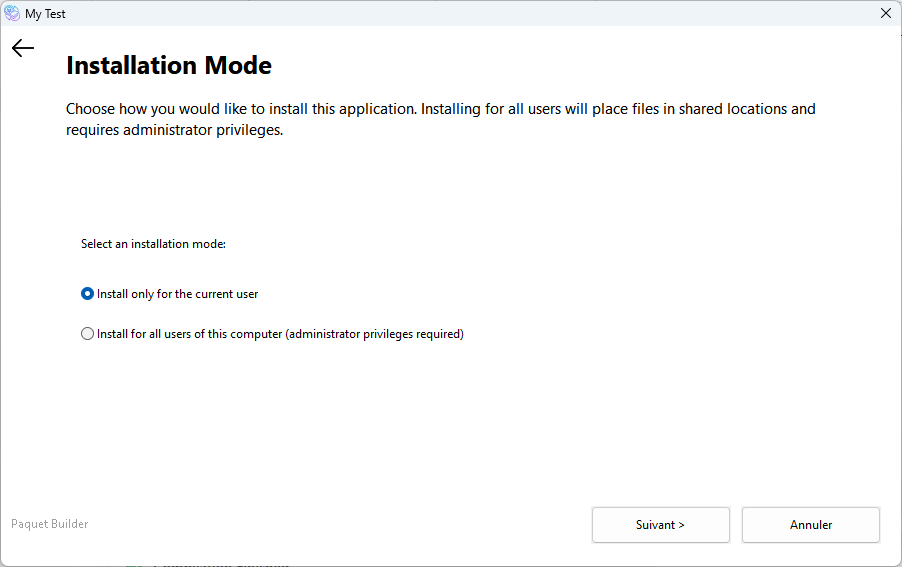
Best for general-purpose applications distributed online.
Silently detects administrator privileges at runtime:
%PROGFILESDIR%, shortcuts to common folders, registry to HKLM).%LOCALAPPDATA%\Programs, shortcuts to user folders, registry to HKCU).No dialog is shown. Best for silent deployments and scripted enterprise installations.
No automatic scope management. All paths, shortcuts, and registry keys must be configured manually.
When you select a scope mode, several core settings adapt automatically:
Destination Folder
Current User: %LOCALAPPDATA%\Programs\YourApp
All Users: %PROGFILESDIR%\YourApp
Shortcuts
Current User: User-specific Start Menu and Desktop All Users: Common (shared) folders
Registry Root
Current User: HKEY_CURRENT_USER
All Users: HKEY_LOCAL_MACHINE
UAC and Uninstaller
Current User: No elevation, user registry All Users: Elevation required, machine registry
| Option | Description | Default |
|---|---|---|
| Request UAC elevation | When the scope resolves to All Users, the installer requests UAC elevation automatically. Disable only if your installer does not need write access to protected locations. | Enabled |
| Fail if admin rights unavailable | The installation aborts with an error when All Users scope is required but administrator rights cannot be obtained. When disabled, the installer silently falls back to Current User. | Disabled |
If the end user selects “All users” but the installer is running with standard privileges, Paquet Builder handles the elevation transparently:
Run as administrator verb./PBSCOPE=1 which tells the elevated instance to use All Users scope directly.
The User Choice dialog uses five Resource Strings that can be translated or modified:
| Resource String | Purpose |
|---|---|
#ScopeChoiceTitle | Dialog window title |
#ScopeChoicePrompt | Main prompt text |
#ScopeChoiceAllUsers | Label for the “All Users” option |
#ScopeChoiceCurrentUser | Label for the “Current User” option |
#ScopeChoiceQuestion | Additional explanatory text |
The following system Variables are resolved at runtime based on the active scope:
| Variable | Description |
|---|---|
%PBINSTALLSCOPE% | Returns 0 for Current User or 1 for All Users |
%PBINSTALLSCOPEDIR% | Resolves to the correct base directory |
%PBSHORTCUTROOT% | Start Menu folder for the active scope |
%PBDESKTOPROOT% | Desktop folder for the active scope |
%PBSCOPEELEVATED% | Returns 1 if the installer was re-launched with elevation |
When using the Console Command-Line Compiler or directives, the following parameters control the installation scope:
| Directive | Values | Description |
|---|---|---|
InstallScope | -1 None, 0 Current User, 1 All Users, 2 User Choice, 3 Automatic | Sets the scope mode |
ScopeRequestUAC | 0 No, 1 Yes | Request UAC elevation for All Users. Default: 1 |
ScopeFailOnAdmin | 0 No, 1 Yes | Fail if admin rights unavailable. Default: 0 |
; Example: User Choice with UAC and silent fallback[Settings]InstallScope=2ScopeRequestUAC=1ScopeFailOnAdmin=0User Choice
Best for general-purpose applications distributed online. Gives end users control without complexity.
Automatic
Best for internal IT deployments or silent scripted installs where the calling process determines elevation.
Current User
Ideal for lightweight apps, portable tools, or scenarios where admin rights are unavailable.
All Users
Mandatory for services, drivers, or apps that must be visible to every account on the machine.