Variable-based paths
Use variables like %DESTPATH%\My Custom Path, %SYS%, %APPDATADIR%, or %MYDOCDIR%\My Software\Assets to target dynamic system locations.
While global settings define default behavior, you can override properties for individual files to place them in specific system directories, extract them conditionally, or prevent them from being uninstalled.
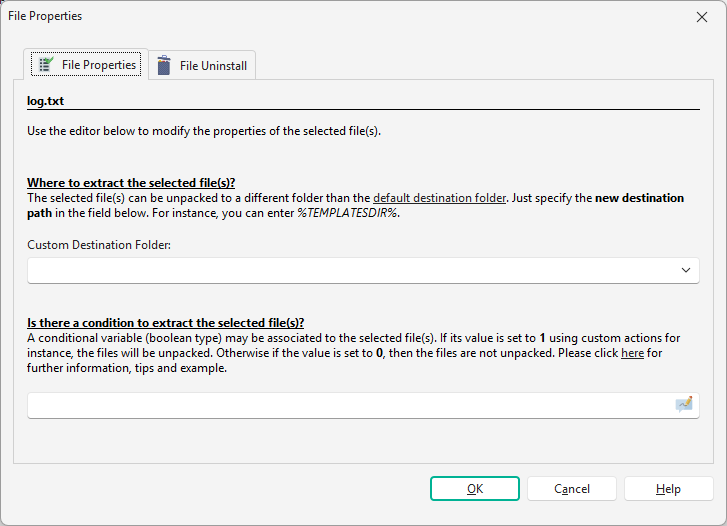
By default, files extract to the Main Destination Folder. You can override this per file:
Variable-based paths
Use variables like %DESTPATH%\My Custom Path, %SYS%, %APPDATADIR%, or %MYDOCDIR%\My Software\Assets to target dynamic system locations.
Runtime paths
Set the destination dynamically at runtime using Modify Variable or Ask User One Choice custom actions.
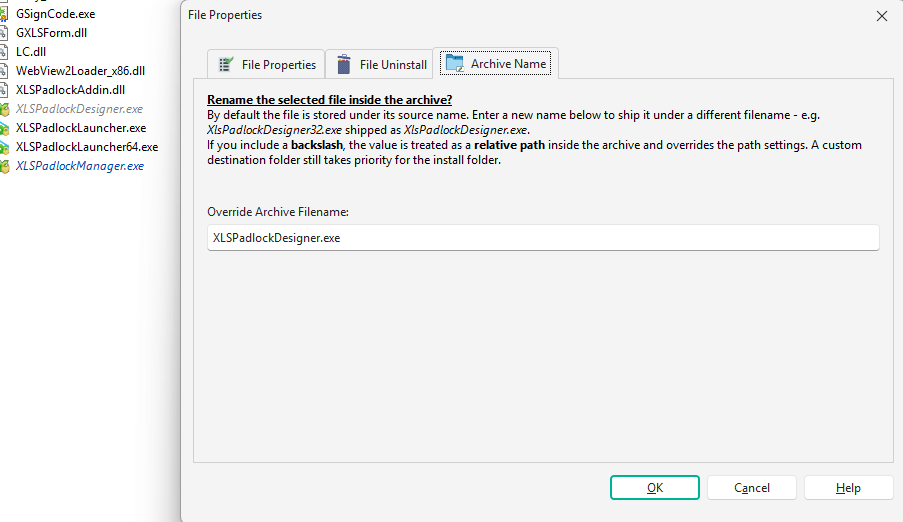
By default, each file is stored inside the package using its source filename. The Archive Name tab of the File Properties dialog lets you ship a file under a different name, without having to keep a manually renamed copy of the source file.
Simple filename
Enter a plain filename (e.g. XlsPadlockDesigner.exe) to rename the file while keeping its computed folder. Typical use: ship an architecture-specific build such as XlsPadlockDesigner32.exe under the neutral name XlsPadlockDesigner.exe.
Relative path
Enter a path that contains a backslash (e.g. bin\Designer.exe) to set the exact location inside the archive. This overrides the global store path and relative path settings for that file.
Control whether a file is extracted at runtime based on a variable value:
%EXTRACT_DOCS%).1 (extract) or 0 (skip).| Scenario | Behavior |
|---|---|
| Component variable only | File extracts if the component is selected |
| Conditional variable only | File extracts if the variable is 1 |
| Both defined | Conditional variable takes precedence: the file extracts if its variable is 1, even if the parent component is not selected |
If you have enabled the Package Uninstaller, you can set “Do not remove the file” for user-generated data, log files, or shared components that should remain on the system after removal.
Right-click files in the File Manager and select Clear Files Properties to revert all custom settings (destination, condition, uninstaller) to default behavior.