Sign Installers with SignTool
To ensure users trust the authenticity of your package, you can digitally sign it using Microsoft Authenticode thanks to Paquet Builder. This guarantees that the package has not been modified since its release. Paquet Builder can handle signing your installer for you, either with its built-in utility GSignCode or, for more advanced use cases aimed at experienced users, Microsoft SignTool.
Below, we describe the procedure to use SignTool. If you do not require advanced features, please refer to the topic Adding a Digital Signature.
1. Prerequisites
Section titled “1. Prerequisites”Before using SignTool, ensure that:
- You have a valid code signing certificate installed in your system.
- You have installed the Windows SDK, which includes SignTool.exe.
- Download the latest Windows SDK from the official Microsoft website: Windows SDK Download
2. Enabling Digital Signing in Paquet Builder
Section titled “2. Enabling Digital Signing in Paquet Builder”-
Open Paquet Builder and navigate to the Digital sign package page.
-
Check the box “Digitally sign my package”.
-
Configure the SignTool Commands by specifying the appropriate parameters.
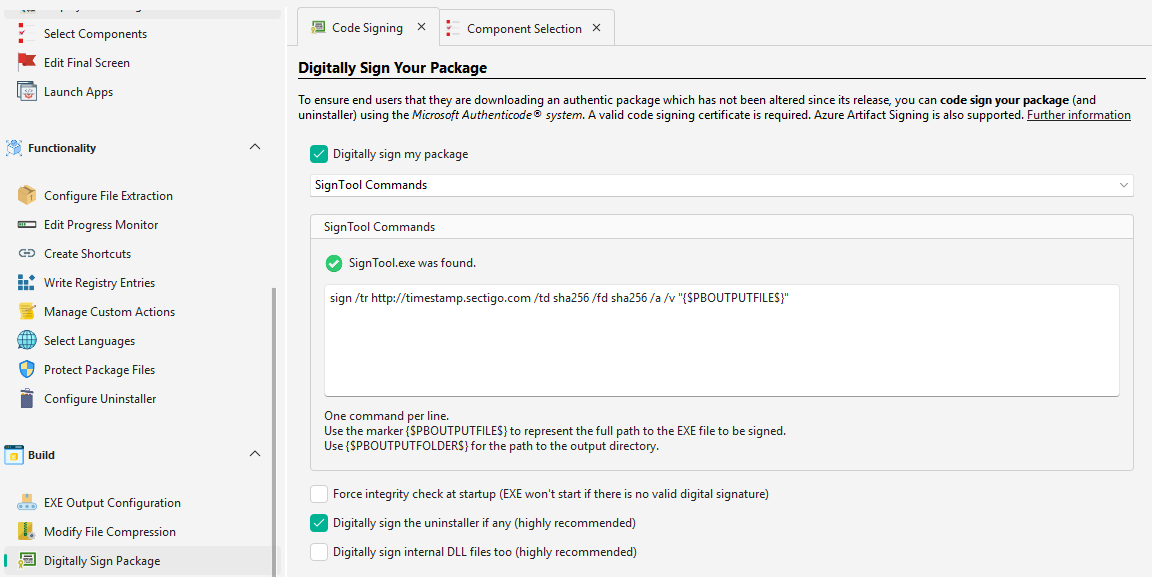
3. Understanding SignTool Parameters in Paquet Builder
Section titled “3. Understanding SignTool Parameters in Paquet Builder”Paquet Builder allows you to dynamically reference the installer file and output directory using placeholders. This ensures flexibility and reduces the need for manual path configuration.
Example SignTool Command in Paquet Builder
Section titled “Example SignTool Command in Paquet Builder”sign /a /fd SHA256 /tr "http://timestamp.digicert.com" /td SHA256 "{$PBOUTPUTFILE$}"Breakdown of Parameters and Placeholders
Section titled “Breakdown of Parameters and Placeholders”| Parameter | Description |
|---|---|
/a | Automatically selects the best certificate available in the system’s certificate store. |
/fd SHA256 | Specifies the file digest algorithm (SHA-256 is recommended). |
/tr "http://timestamp.digicert.com" | Defines the timestamp server for RFC 3161 timestamping. |
/td SHA256 | Specifies the digest algorithm for the timestamp. |
{$PBOUTPUTFILE$} | Automatically inserts the full path to the installer file(s) to be signed. |
Available Placeholders in Paquet Builder
Section titled “Available Placeholders in Paquet Builder”| Placeholder | Description |
|---|---|
{$PBOUTPUTFILE$} | Represents the full path to the executable file(s) to be signed. |
{$PBOUTPUTFOLDER$} | Represents the path to the output directory where the signed file will be stored. |
These placeholders allow Paquet Builder to dynamically insert the correct file paths during the signing process, eliminating the need to hardcode file locations.
4. Signing Your Installer Package
Section titled “4. Signing Your Installer Package”Once the SignTool Commands are configured, click Build in Paquet Builder. The tool will automatically invoke SignTool to sign the generated executable.
5. Alternative: Signing with a Specific Certificate
Section titled “5. Alternative: Signing with a Specific Certificate”If you need to sign with a specific certificate (instead of letting SignTool choose automatically), you can use:
sign /fd SHA256 /sha1 ABCD1234... /tr "http://timestamp.digicert.com" /td SHA256 {$PBOUTPUTFILE$}/sha1 ABCD1234...: Selects a certificate using its SHA-1 fingerprint./n "My Certificate Name": Selects a certificate by its common name.
For more details, refer to the official SignTool Documentation.
Multiple Digital Signatures in Paquet Builder
Section titled “Multiple Digital Signatures in Paquet Builder”In Paquet Builder, it is possible to execute multiple SignTool commands sequentially by entering them line by line in the designated field. Each command will be executed in order, allowing you to apply multiple signatures, such as adding both SHA-1 and SHA-256 signatures to your installer.
Example: Dual SHA-1 and SHA-256 Signatures
Section titled “Example: Dual SHA-1 and SHA-256 Signatures”To sign an installer first with SHA-1 and then with SHA-256, enter the following commands on separate lines in the SignTool Commands field:
sign /a /fd SHA1 /tr "http://timestamp.digicert.com" /td SHA1 "{$PBOUTPUTFILE$}"sign /a /fd SHA256 /tr "http://timestamp.digicert.com" /td SHA256 "{$PBOUTPUTFILE$}"Explanation
Section titled “Explanation”- The first command signs the installer using SHA-1 (useful for backward compatibility with older systems).
- The second command adds an additional SHA-256 signature, ensuring compliance with modern security standards.
By entering each command on a new line, Paquet Builder will execute them one after the other automatically.
Defining the Path to SignTool in Paquet Builder
Section titled “Defining the Path to SignTool in Paquet Builder”Before using SignTool, you must ensure that its path is correctly set in Paquet Builder.
In Paquet Builder, go to: Menu -> Environment Options -> Code Signing
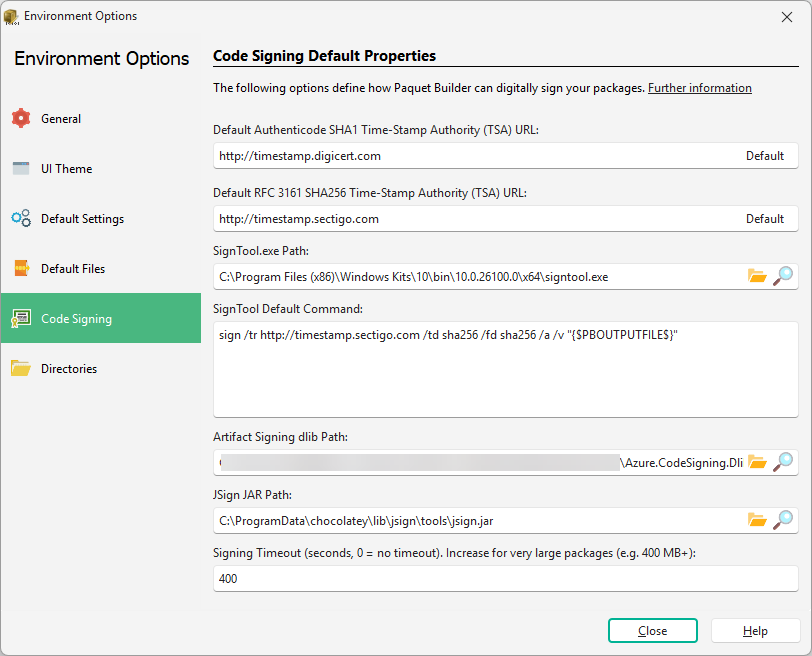
Here, you will find the field where you need to specify the path to SignTool.exe.
Automatically Detecting SignTool
Section titled “Automatically Detecting SignTool”- Click on the magnifying glass button.
- Paquet Builder will attempt to locate SignTool.exe automatically by checking the Windows registry.
Manually Setting the Path
Section titled “Manually Setting the Path”If Paquet Builder cannot find SignTool, you will need to manually enter the full path to SignTool.exe.
-
Typically, SignTool is located in:
C:\Program Files (x86)\Windows Kits\10\bin\X.X.X.X\x64\signtool.exe