Azure Artifact Signing
1. Introduction
Section titled “1. Introduction”Azure Artifact Signing is a cloud-based code signing solution by Microsoft that eliminates the need for local code signing certificates. Instead, it securely signs executables through Microsoft’s artifact signing service, providing enhanced security and ease of use.
Using Azure Artifact Signing in Paquet Builder ensures a streamlined and automated code signing process directly within your installer build workflow.
2. Why Choose Azure Artifact Signing?
Section titled “2. Why Choose Azure Artifact Signing?”Azure Artifact Signing offers several key benefits over traditional certificate-based signing:
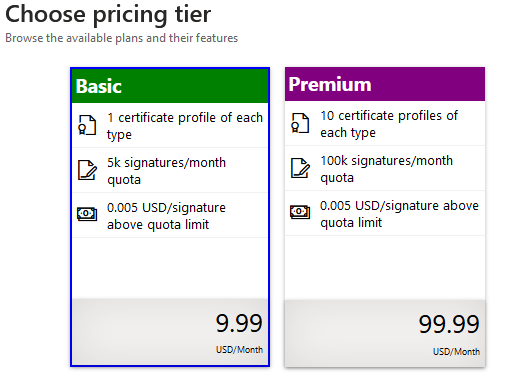
- Lower Cost: Traditional certificates can be expensive (hundreds of USD), while Azure Artifact Signing provides a pay-as-you-go model, making it more affordable.
-
No Need for USB Tokens: Standard certificates require a hardware security module (HSM) or USB token for private key storage, which can be cumbersome. Azure Artifact Signing eliminates this requirement.
-
Cloud-Based Security: Signing keys are managed entirely in the cloud, preventing theft or loss and reducing security risks.
-
Microsoft Trust and Compliance: As a Microsoft-backed solution, Azure Artifact Signing meets industry security standards while ensuring broad compatibility.
3. Prerequisites
Section titled “3. Prerequisites”Before signing with Azure Artifact Signing, you need:
- An Artifact Signing account with identity validation and a certificate profile.
- A role assignment: The Artifact Signing Certificate Profile Signer role must be assigned to you or your team.
- A compatible Windows version: Windows 11, Server 2016, or 10 (1809/October 2018 Update or newer)
Official Microsoft Documentation on Prerequisites: Azure Artifact Signing Integration Guide
4. Required Installations
Section titled “4. Required Installations”To use Azure Artifact Signing with Paquet Builder, install the following tools:
Artifact Signing Client Tools Installer
Section titled “Artifact Signing Client Tools Installer”This tool enables the integration of Azure Artifact Signing with SignTool.
Download the MSI Installer: Artifact Signing Client Tools
Azure CLI for Windows
Section titled “Azure CLI for Windows”Azure CLI is required to authenticate your account with Azure Artifact Signing.
Installation Guide: Install Azure CLI for Windows
Direct MSI (64-bit) Download: Azure CLI MSI Installer
Why Install Azure CLI?
- Used for logging into Azure before signing packages.
- Required for managing Azure credentials securely.
- Allows automated authentication when using Azure services with Paquet Builder for code signing.
5. Configuring Azure Artifact Signing in Paquet Builder
Section titled “5. Configuring Azure Artifact Signing in Paquet Builder”Once everything is installed, you can configure Paquet Builder for Azure Artifact Signing:
-
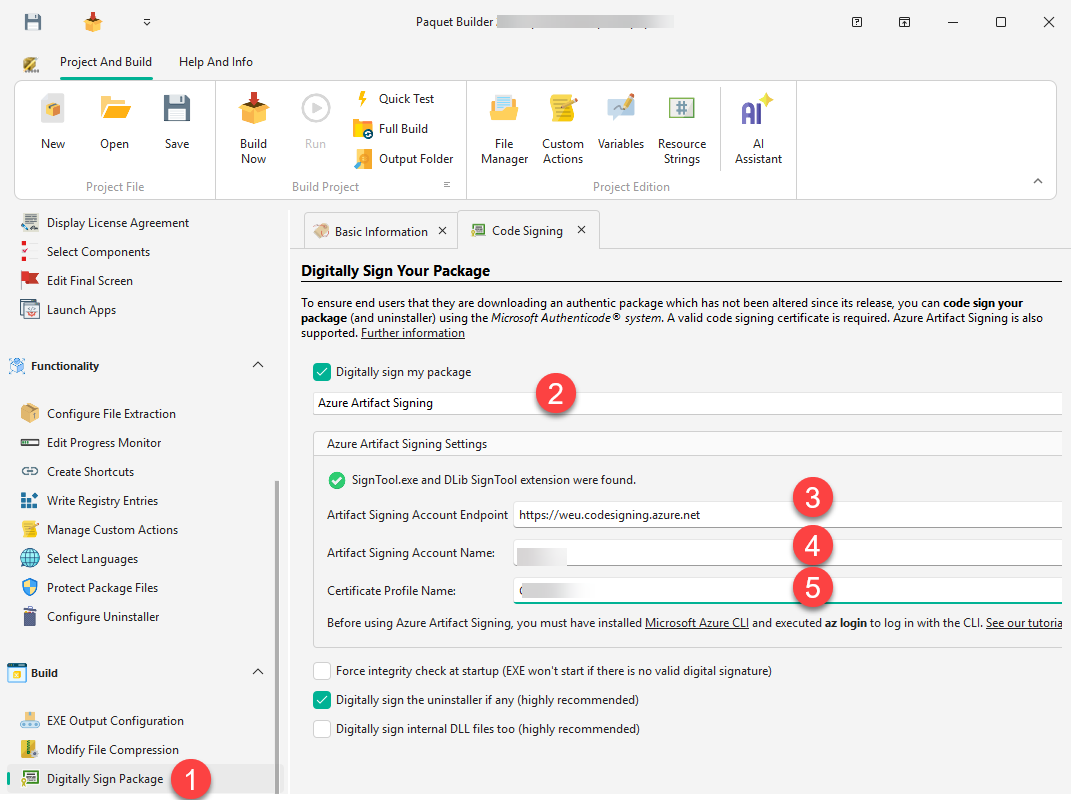
Open Paquet Builder
-
Go to the Digitally Sign Package page
-
Select Azure Artifact Signing from the dropdown
-
Enter the required fields:
-
Artifact Signing Account Endpoint
Enter the Artifact Signing Account Endpoint corresponding to your Azure region. Use the following table to find the correct endpoint:
Region Region Class Endpoint URI East US EastUShttps://eus.codesigning.azure.netWest US 3 WestUS3https://wus3.codesigning.azure.netWest Central US WestCentralUShttps://wcus.codesigning.azure.netWest US 2 WestUS2https://wus2.codesigning.azure.netNorth Europe NorthEuropehttps://neu.codesigning.azure.netWest Europe WestEuropehttps://weu.codesigning.azure.netMake sure to select the endpoint matching the region where your Azure Artifact Signing account was created.
-
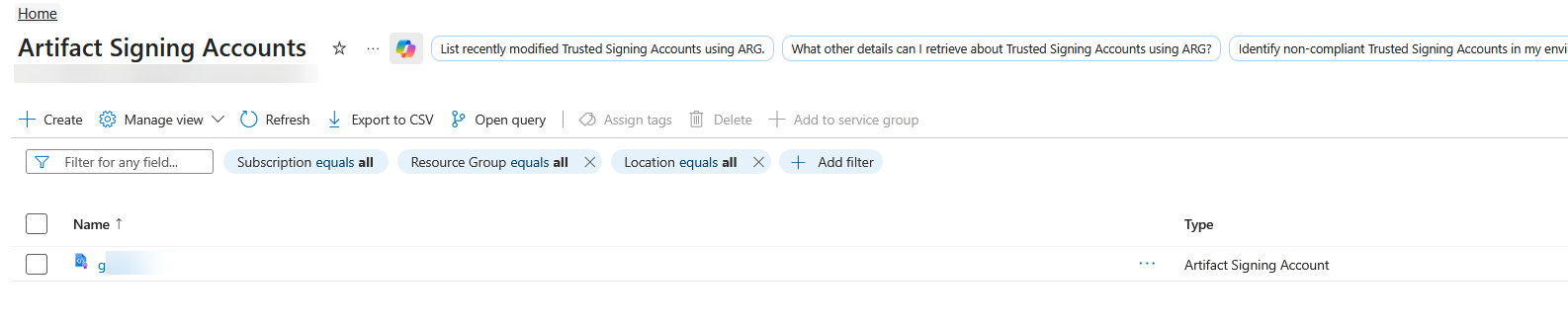
Artifact Signing Account Name (your Azure account name)
-
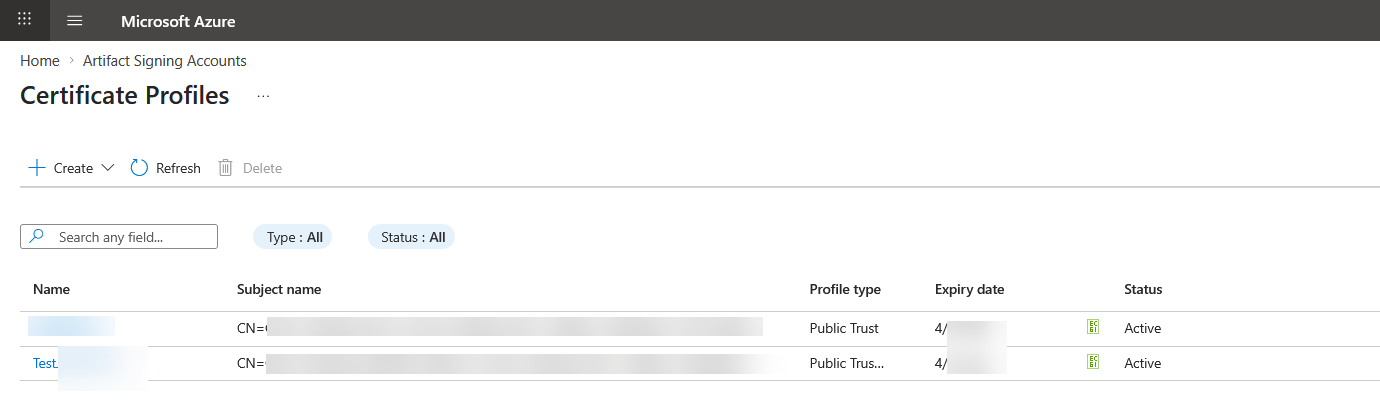
Certificate Profile Name (your signing certificate profile)
-
-
Before signing, authenticate in Azure CLI: Run the following command in PowerShell or Command Prompt:
Terminal window az loginThis will open a browser window to authenticate your Azure account.
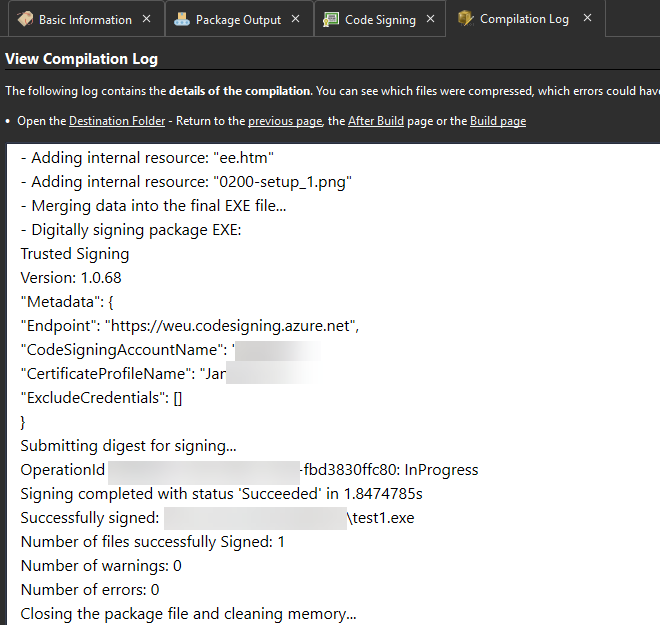
Once this is configured, Paquet Builder will automatically invoke the Microsoft SignTool utility to sign your installer EXE file. All signing operations are listed in the compilation log:
Configuring SignTool and Azure Artifact Signing Paths in Paquet Builder
Section titled “Configuring SignTool and Azure Artifact Signing Paths in Paquet Builder”To ensure that Paquet Builder can correctly sign your installer packages, you must configure the paths to SignTool.exe and its Azure Artifact Signing extension (dlib) in the Environment Options. Paquet Builder should automatically do that.
Setting the Path to SignTool.exe
Section titled “Setting the Path to SignTool.exe”-
Navigate to Environment Options -> Code Signing.
-
Locate the SignTool.exe Path field.
-
Click on the magnifying glass to let Paquet Builder automatically detect the installed SignTool.exe.
-
If the path is not found, enter it manually. The default installation location is:
C:\Program Files (x86)\Windows Kits\10\bin\10.0.26100.0\x64\signtool.exe
Setting the Path to Azure Artifact Signing dlib
Section titled “Setting the Path to Azure Artifact Signing dlib”If you are using Azure Artifact Signing, you must configure the Artifact Signing dlib Path field. The Azure.CodeSigning.Dlib.dll file is installed by the Artifact Signing Client Tools Installer (see above).
-
Locate the Artifact Signing dlib Path field.
-
Click on the magnifying glass to let Paquet Builder automatically find the extension.
-
If it is not found, enter the path manually:
C:\Users\LOGIN NAME\AppData\Local\Microsoft\MicrosoftArtifactSigningClientTools\Azure.CodeSigning.Dlib.dll
Replace LOGIN NAME with your actual Windows username.