Multi-selection
Select multiple strings for batch Edit, Delete, or Translate operations.
Resource strings are named text constants used throughout your project. By using strings instead of hardcoded text, you can create a single installer that supports multiple languages seamlessly.
Resource strings are identified by a # prefix (e.g. #BrowseFolders). At runtime, the package replaces them with the actual text for the user’s selected language.
Click the Resource Button 
Manage all your project’s text and translations through the Resource String Editor, accessible via the toolbar or the Language Manager.
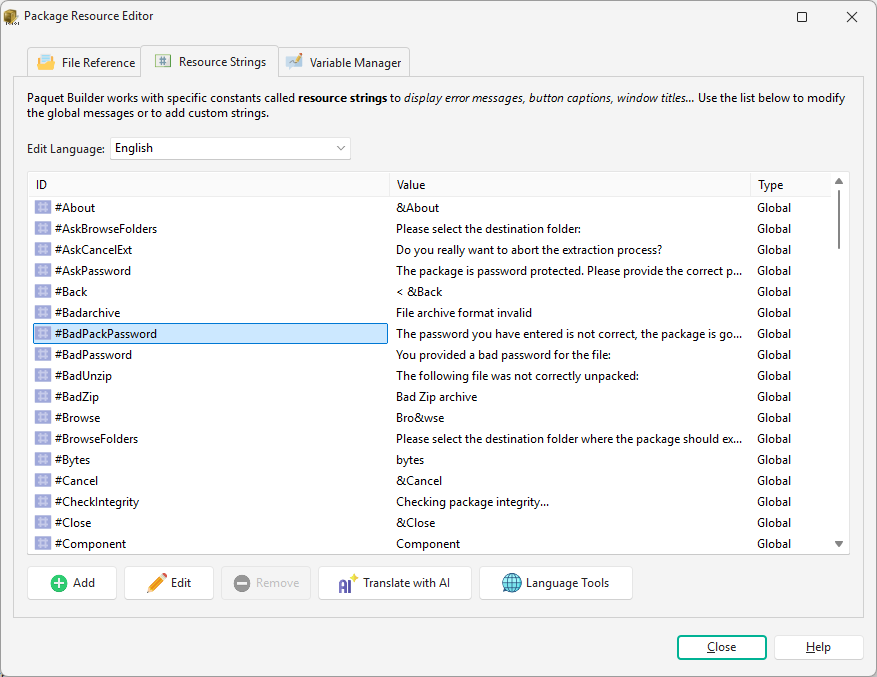
Double-click a string or click Edit to open its properties:
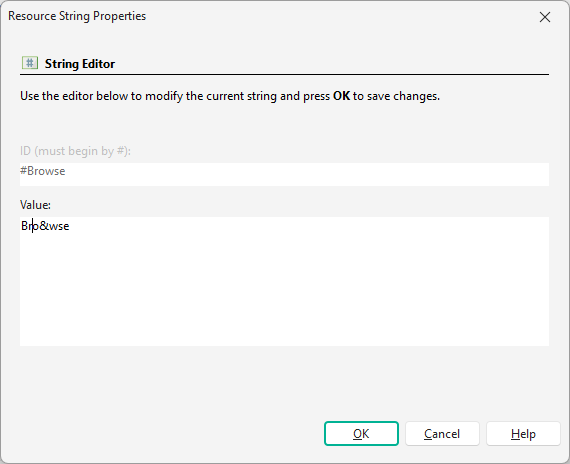
| Field | Description |
|---|---|
| ID | Unique name starting with # (e.g. #UserWelcome). Custom IDs can be renamed; Global IDs cannot. |
| Value | The actual text displayed to the user. For example, #UserWelcome might be “Welcome!” in English and “Bienvenue !” in French. |
Multi-selection
Select multiple strings for batch Edit, Delete, or Translate operations.
Translate with AI
Automatically translate selected strings into all other project languages using your configured AI provider.
Fill Missing Strings
Copy all identifiers from the current language to other languages where they are missing, ensuring all translation sets have the same structure.
Language Tools
Access import/export options and additional language management utilities.
Each language file has its own settings:
| Property | Description |
|---|---|
| LCID | Windows Locale Identifier (e.g. 1033 for English, 1036 for French), used for automatic detection |
| Author | Name of the translator |
| Contact email for the translator | |
| Reading Direction | LTR or RTL (for Arabic, Hebrew, etc.) |
| Detail | Value |
|---|---|
| File format | .pbr (UTF-8 XML) |
| Reading direction | LTR and RTL supported |
| Import/Export | .pbr files reusable across projects |