One JSON config.
Full installer control.
Drive Paquet Builder from Claude Code, Cursor, Windsurf, or any MCP-compatible AI tool. PBMCPServer bridges your AI client to the full project engine. No GUI required.
One config. Twenty tools. Zero clicks.
MCP Server
Watch it work
A real session.
Three tool calls.
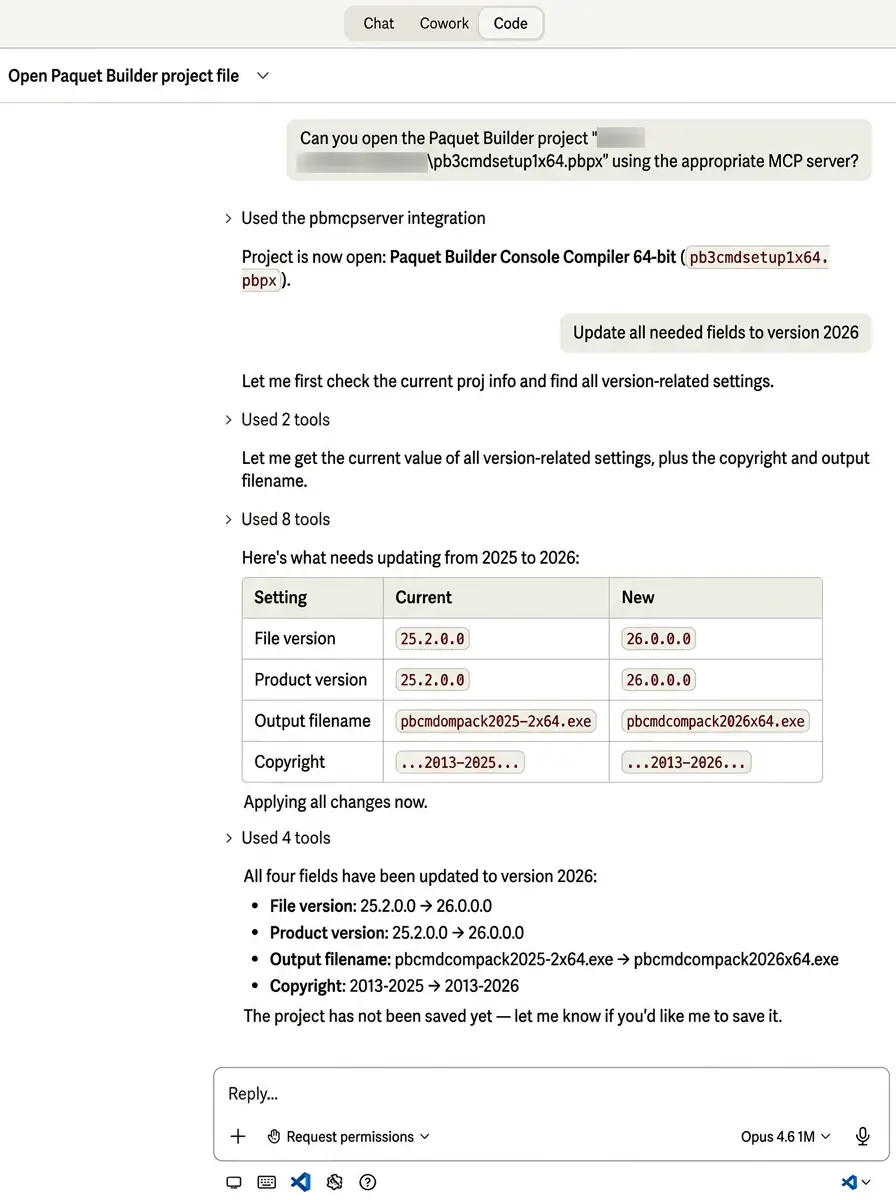
Not a mockup. An actual Claude Code transcript shipping a new build of an existing installer project: open, mutate, compile.
- 01 Reads the project state via open_project
- 02 Bumps the version through set_setting, auto-saved
- 03 Ships via compile and returns the signed EXE path
Three tools, then twenty more
Read the project. Mutate anything. Ship.
Most sessions use the same three tools over and over. Everything else (validation, filesystem, doc search, custom actions, registry) sits behind the same structured interface.
Tool 01
open_project
Point the agent at a .pbpx file. It gets a structured view of every setting, file, variable, registry entry, shortcut and screen, then queries any of them with collection_query.
// returns
{
  title: "SuperTool Setup",
  version: "4.1.3",
  files: 47,
  variables: 12,
  custom_actions: 8
}
Tool 02
set_setting
Change anything the GUI can change. Auto-saved immediately. Don't know the key? find_relevant_settings searches by plain-English intent.
In the same family: collection_mutate · custom_actions_mutate · custom_actions_validate
Tool 03
compile
Build the installer and return a structured log with errors and warnings. Pair with get_build_log for full output or execute_directive for batch automation.
In the same family: get_build_log · execute_directive · search_doc
Plus validation, presets, filesystem, doc search, custom actions, and build introspection: 20+ tools in total.
Paquet Builder must be installed on the machine running the MCP server.
Works with Freeware, Trial, Pro, and Ultimate, same edition limits as the GUI.
Quick Start
Add one config block. Start building.
Point your AI client to PBMCPServer.exe and you're ready to go. Here's the config for each tool.
{
  "mcpServers": {
    "pbmcpserver": {
      "type": "stdio",
      "command": "C:\\Program Files\\Paquet Builder\\PBMCPServer.exe"
    }
  }
}Typical workflow
Open project
open_project → get_project_info
Query & modify
get_setting → set_setting → collection_mutate
Compile & verify
compile → get_build_log
Compatible AI clients
Two AI workflows
Embedded assistant or external agent: pick what fits
The built-in AI assistant is great for interactive work inside the GUI. The MCP server is designed for headless automation and AI coding tools.
Embedded AI Assistant
- Built-in chat window inside the IDE
- Reviewable action cards before applying
- AI provider configured in Paquet Builder
- Best for interactive, exploratory work
MCP Server
- External AI client: Claude Code, Cursor, Windsurf, VS Code
- Immediate mutations, auto-save after each change
- AI provider managed by the client, no config in Paquet Builder
- Best for automation, CI/CD, batch scripting
Keep Touring
Move through the feature set without jumping back to the grid
Use the pager to continue the product tour, or jump back to the full overview at any point.
Batch Build & Automation
Automate your builds with silent installers, command-line compilation, and seamless CI/CD pipeline integration.
Overview
See all features
Console Compiler
Build installers from the command line with structured exit codes and directive-based scripting. Ideal for CI/CD pipelines.
Ready when you are
Ship installers from your terminal.
Point Claude Code at PBMCPServer.exe and drive your whole build from the command line. One config. Twenty tools. Zero clicks.