Drive package logic
Ask questions, set variables, branch with conditions, jump to labels, or stop the package when prerequisites are not met.
Custom actions are the advanced behavior layer of Paquet Builder. They let you extend what happens at runtime without writing scripts by hand.
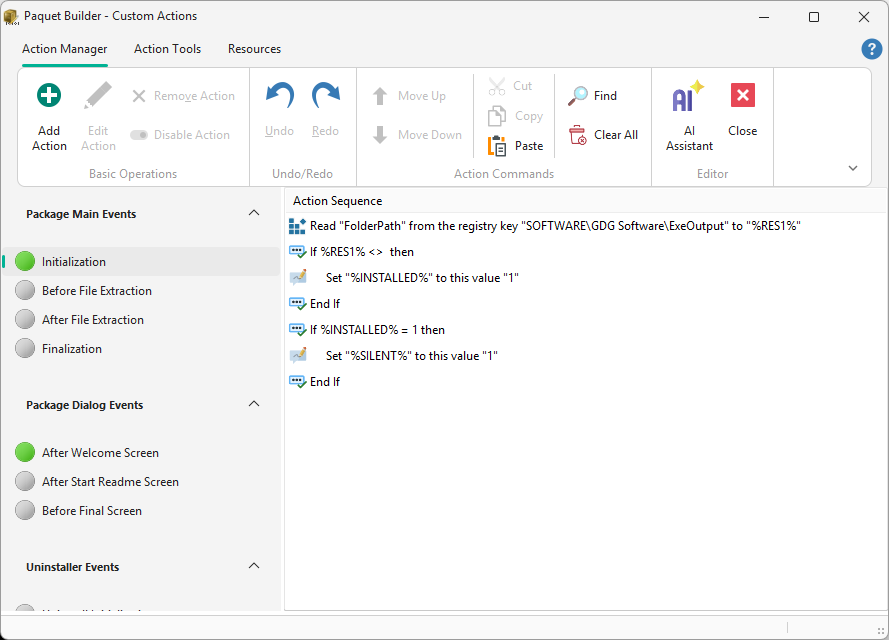
To add custom actions, click the Custom Actions button in the toolbar. This opens the Custom Action Manager, where you select an event, click Add Action, and choose from the action catalog.
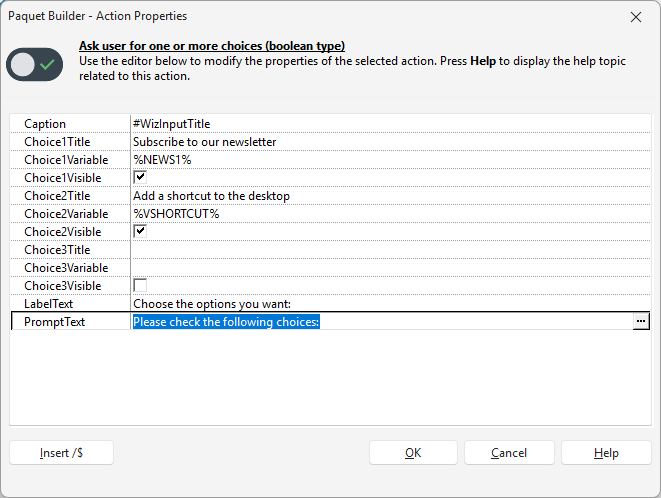
Each action exposes properties that you edit through the Action Properties Editor.
Drive package logic
Ask questions, set variables, branch with conditions, jump to labels, or stop the package when prerequisites are not met.
Work with the system
Read or write files, registry keys, XML nodes, INI entries, shortcuts, and environment variables.
Control the user experience
Show dialogs, readme pages, license agreements, information panels, and wait messages at specific stages.
Custom actions belong to specific execution phases called events. Actions inside the same event run in the order they appear in the action list.
%SILENT% or %PBLANGID%).%SELLANG% / %PBLANGID% are resolved) but before the welcome screen is displayed. Runs even when the package has no welcome screen. Use it for language-dependent setup that must happen before any UI appears (for example, setting a variable that the welcome screen’s HTML will display).In addition to these package events, Paquet Builder also supports dialog-related events and uninstaller events.
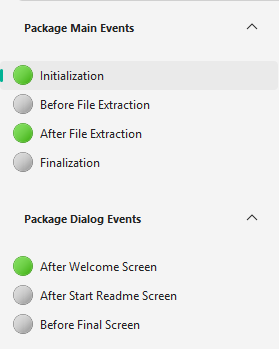
Events that contain at least one action show a green LED indicator.
Validation is partial
Paquet Builder checks whether required properties are filled in, but it cannot guarantee that the action logic is correct for your scenario.
Conditions must be balanced
Actions such as Conditional If/Then/Else must be paired correctly, including the matching end statement.
Variables are everywhere
Most action properties can use variables and resource strings to keep packages dynamic.
Some actions are property-free
A few actions, such as Exit Package, do not open the properties editor because they do not need additional configuration.
To annotate an action list for yourself or your team, use the User Comment action.
The editor supports Undo (Ctrl+Z) and Redo (Ctrl+Y) with up to 30 levels. This includes adding, deleting, moving, enabling, disabling, drag-and-drop reordering, paste operations, and changes proposed by the AI Assistant.
Dialog-based actions such as Show a Readme Dialog, Show a License Agreement, and Show an Information Panel use WebView2 when it is available on the destination system. That gives these dialogs modern HTML and CSS rendering, consistent with the built-in installer screens.
If WebView2 is not installed, Paquet Builder automatically falls back to the legacy Markdown viewer. You can also force the Markdown viewer explicitly by enabling the ForceMarkdownViewer property on the action.