PFX / Certificate Store
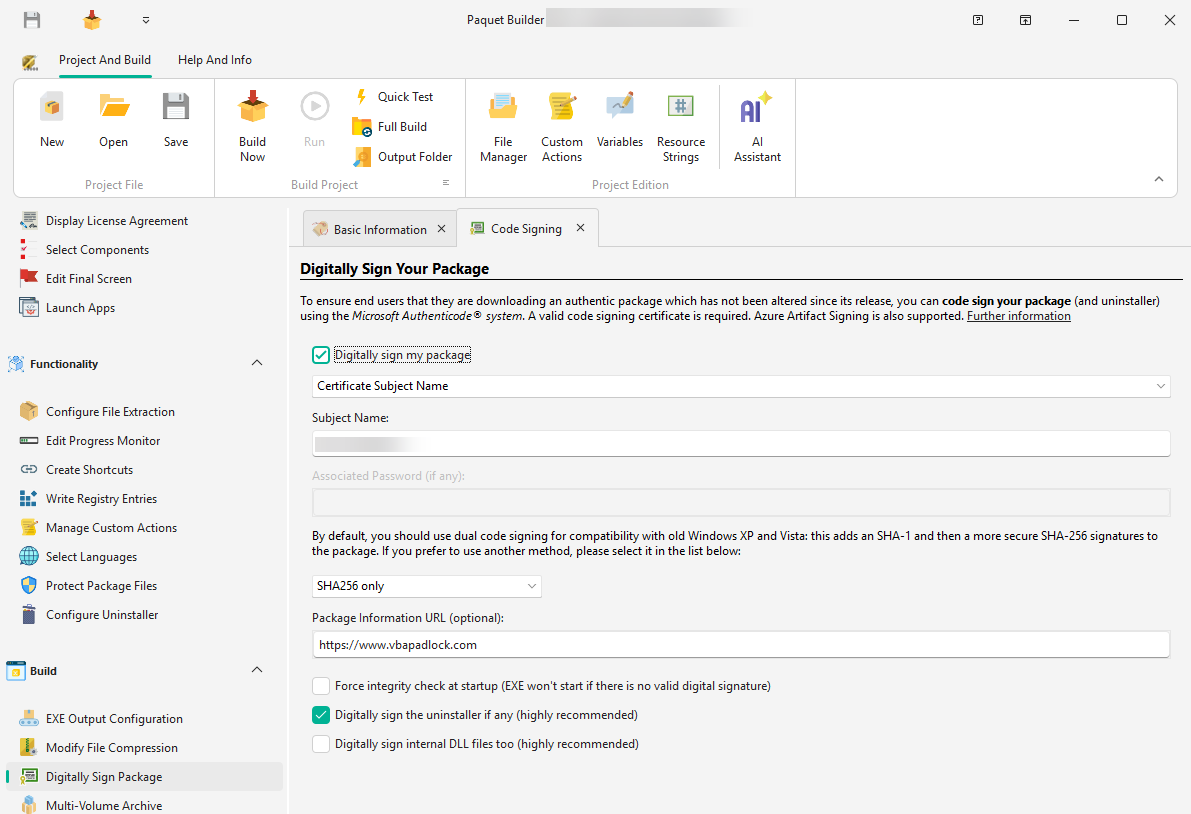
Use a .pfx file or a certificate installed in the Windows Certificate Store. Paquet Builder signs with the built-in GSignCode utility.
Digitally signing your package ensures end users that the code has not been tampered with. Based on Microsoft Authenticode, digital signing verifies the source and integrity of your installer.
End users see a certificate indicating the software’s origin and authenticity, reducing security warnings:
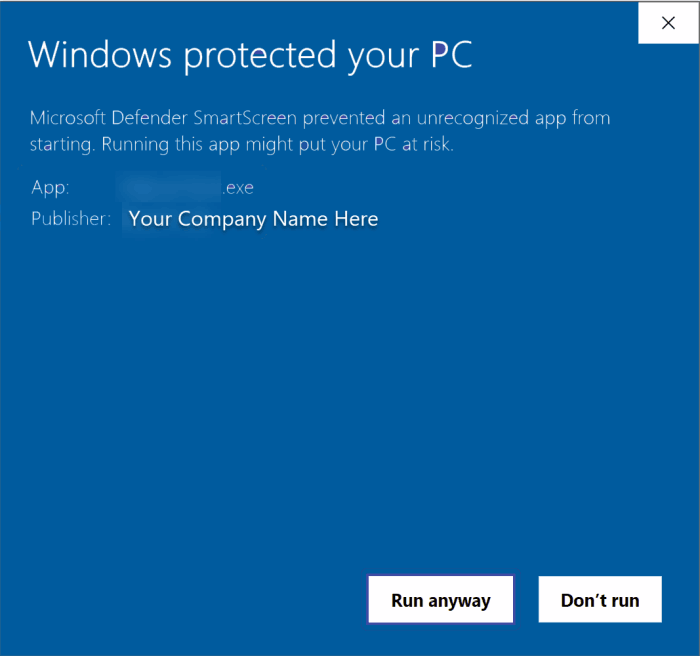
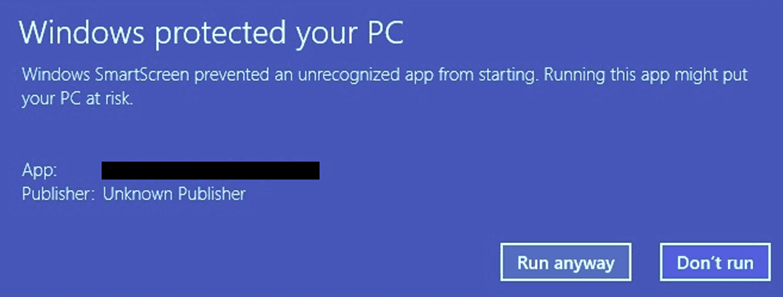
Windows displays a warning that may discourage users from proceeding:
PFX / Certificate Store
Use a .pfx file or a certificate installed in the Windows Certificate Store. Paquet Builder signs with the built-in GSignCode utility.
Hardware token
Connect your HSM or USB token containing the private key. GSignCode adapts automatically, including ECC support.
SignTool Commands
Use Microsoft SignTool for advanced signing scenarios and full control over parameters. Read the guide →
Azure Artifact Signing
Use Microsoft’s cloud signing service: lower cost, no USB tokens, cloud-managed keys. Read the guide →
JSign (open-source)
Free tool supporting Azure Key Vault, AWS KMS, Google Cloud KMS, hardware tokens, and more. Read the guide →
You need a valid code signing certificate from a trusted Certificate Authority (CA) such as Sectigo or Digicert. Alternatively, Azure Artifact Signing offers a much cheaper pay-as-you-go model. See the dedicated topic.
Specify the path to your .pfx file and its password. To create a PFX from separate key files:
pvk2pfx.exe -pvk MyPrivateKey.pvk -spc MyPublicKey.cer -pfx MyPFX.pfx -po your_passwordProvide the subject name or thumbprint of your certificate installed in the Current User or Local Computer store.
Connect your token and ensure it is accessible during the build. GSignCode adapts to the token’s capabilities automatically.
| Algorithm | Description |
|---|---|
| SHA-256 | Default and recommended standard |
| Dual signing | Combines SHA-256 and SHA-1 for backward compatibility with Windows XP/Vista |
Integrity check at startup
Forces a mandatory signature validation by the OS. Unsigned files will fail to execute.
Timestamp
Ensures the signature does not expire. Configure Authenticode and RFC-3161 timestamp servers in Environment Options.
Sign the uninstaller
Signs the uninstaller EXE file. Highly recommended.
Sign internal DLLs
Signs internal runtime libraries used temporarily by your package.