Uninstaller
Installs clean. Uninstalls completely.
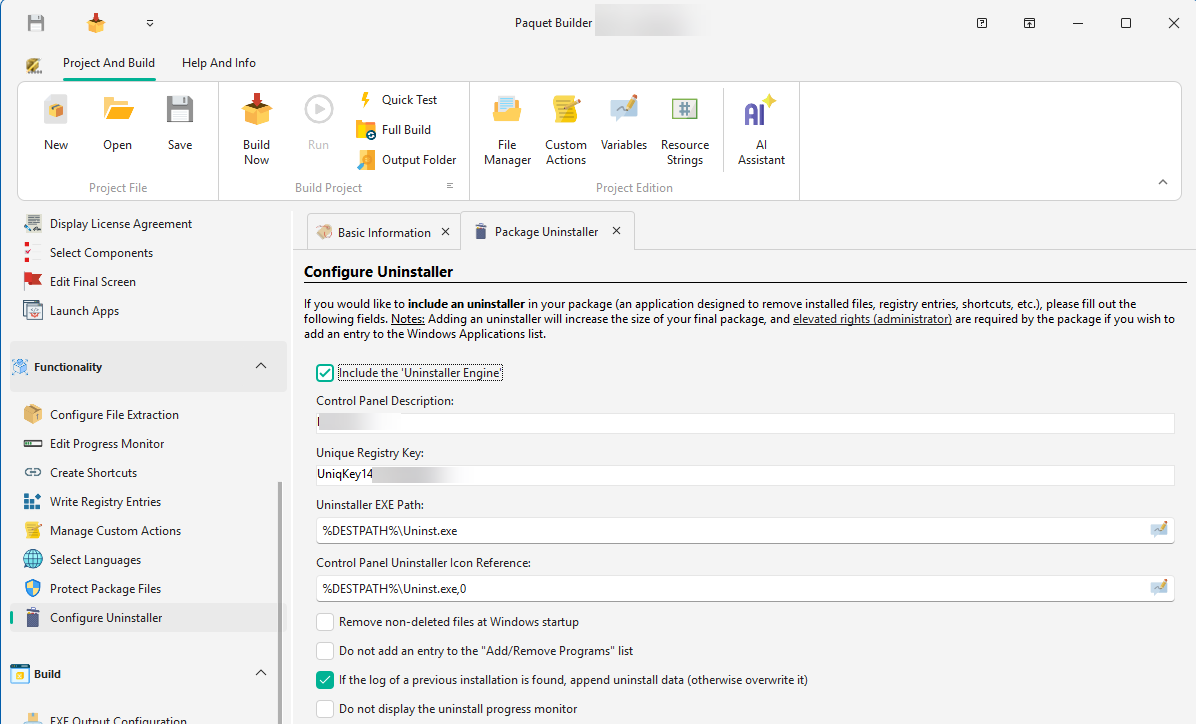
Every package can ship a built-in uninstaller that registers in Add/Remove Programs and removes every file, folder, shortcut, and registry key it created. No leftovers, no orphaned entries, no manual cleanup.
Uninstaller
Removes everything it installed
At install time the engine writes a log of every change. Uninstalling reverses it precisely, so users are left with a clean system instead of stray files and dead Start Menu links.
- Files and folders
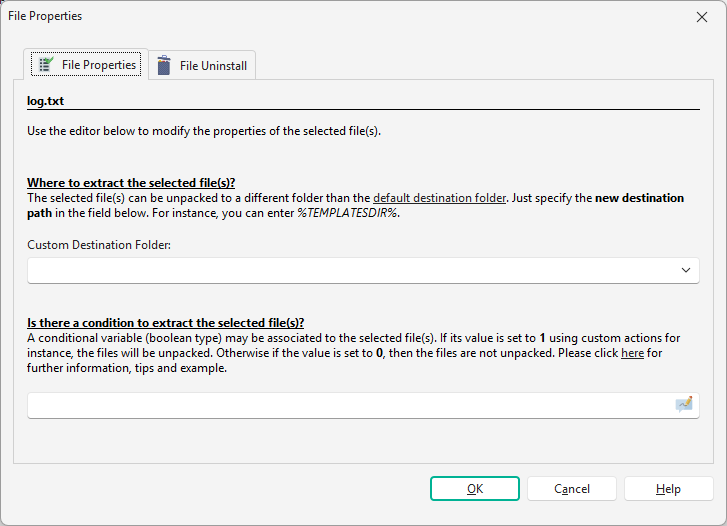
- Every extracted file, plus any empty folders the package created. Mark individual files as "do not remove" to preserve user data, logs, or config.
- Shortcuts
- Start Menu, Desktop, and Taskbar shortcuts created during installation are all cleaned up.
- Registry and INI entries
-
Registry keys under
HKCUorHKLMand.inientries written by the installer. - Shared files, safely
- Shared DLLs and OCX controls are reference-counted. They are only removed when no other application on the machine still depends on them.
Add/Remove Programs
Right where users
expect to find it.
Your package registers under Settings › Apps › Installed apps (and the classic Add/Remove Programs) with your product name, publisher, version, icon, and estimated size. People uninstall it the way they uninstall everything else.
My Application
1.7.0 · G.D.G. Software · 24.3 MB
Illustration of the entry your package creates.
- Product name, publisher, version, icon, and estimated install size
- A unique registry key you control, readable at runtime via
%PBUNINSTREGKEY% - Or hide it entirely from the Control Panel when you ship your own removal flow
- A
.logfile is written next to the uninstaller for diagnostics
Silent & enterprise
Removes without
a single prompt
Push uninstalls through SCCM, Intune, Group Policy, or a plain script. Since 2026.1 the uninstaller recognizes /s natively, so there is nothing extra to configure.
- Native
/ssilent switch, or set%SILENT%from an uninstall action - Scope-aware: removes per-user or all-users installs with the right privileges
- Optional "skip admin check" lets standard users remove per-user packages
- In-use files are scheduled for removal on the next Windows reboot
- Run custom uninstall actions: stop services, de-register controls, prompt for feedback
:: Silent uninstall, no prompts, no UI
:: (SCCM, Intune, Group Policy, or a script)
"C:\Program Files\MyApp\Uninstall.exe" /s
The same EXE works interactively or silently.
Upgrades
Clean upgrades, automatically
Installing a new version over an old one? The new Uninstall a Previous Version action runs the previous uninstaller first and waits for it to actually finish before your files are written. It reports the outcome in %PBPREVUNINSTRESULT%, so your project can react: continue, warn, or defer a reboot to the very end.
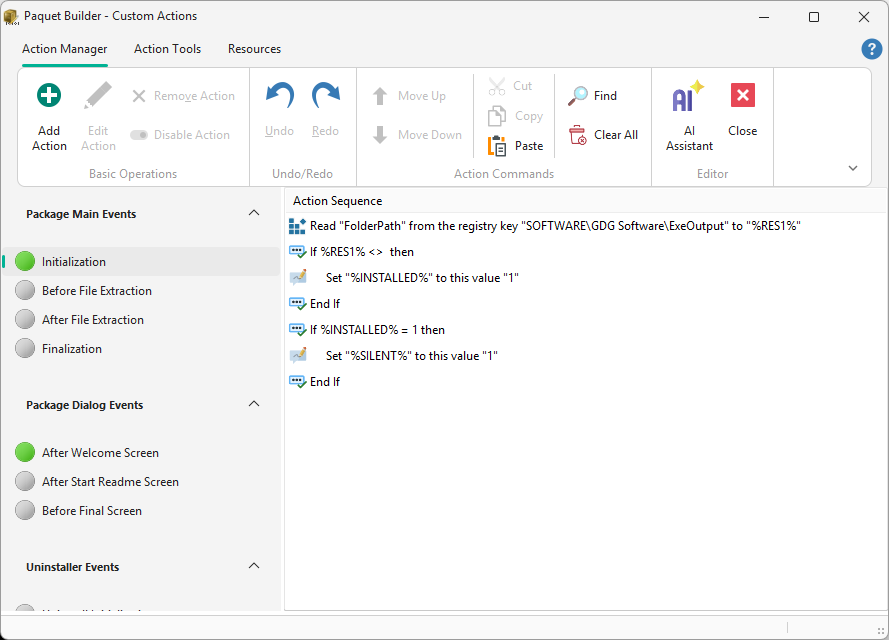
- Finds the previous uninstaller from the registry, with an explicit fallback path
- Runs it silently or with its native interface, and waits for completion
- Reports a "reboot required" outcome so you can roll a single reboot to the end
- Compatible with uninstallers built by earlier versions
Keep Touring
Move through the feature set without jumping back to the grid
Use the pager to continue the product tour, or jump back to the full overview at any point.
Setup Installers
Full control over installer behavior including shortcuts, registry entries, custom actions, and component-based installations.
Overview
See all features
Customize & Theme
Design your package look and feel with custom themes, welcome screens, progress monitors, and branded dialogs.
Ship installers that uninstall cleanly
Download Paquet Builder and add a complete uninstaller to your package: Add/Remove Programs registration, silent removal, and clean upgrades.