Build Silent Installers for Windows
For an overview of why silent installers matter and how Paquet Builder compares with other approaches, see the Silent Installers page. This post walks through the setup step by step.
Paquet Builder makes it easy to create silent installers: these packages extract files, create shortcuts, and execute additional EXE or MSI setups silently in the background. You can also configure command-line options to enable silent mode when necessary. Here’s how to do it.
Step 1: Enable Silent Package Mode
Creating a silent installer in Paquet Builder is straightforward. Simply activate the “Create a silent package” option, as shown below:
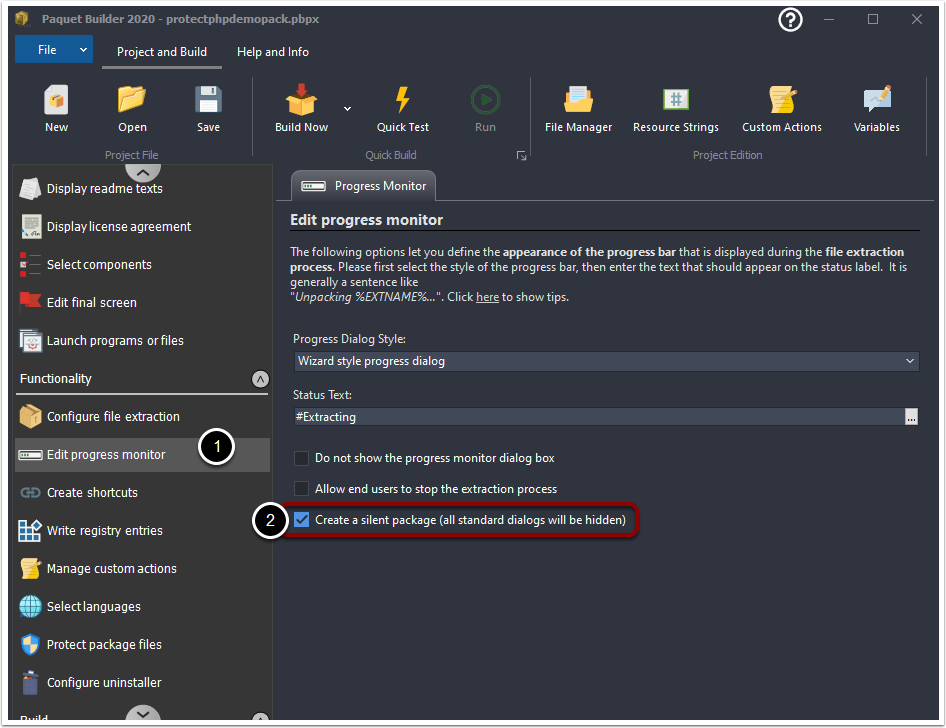
When the installer is launched, it will automatically run in silent mode, meaning all dialogs will be hidden, and no user interaction will be required.
Automation and Exit Codes
If you use automation, silent installers built with Paquet Builder will return appropriate exit codes to indicate success or errors. This allows you to monitor results and take action in your automation scripts.
Step 2: Enable Silent Mode via Command Line
If you prefer to activate silent mode only when a specific command-line parameter is passed, follow these steps:
-
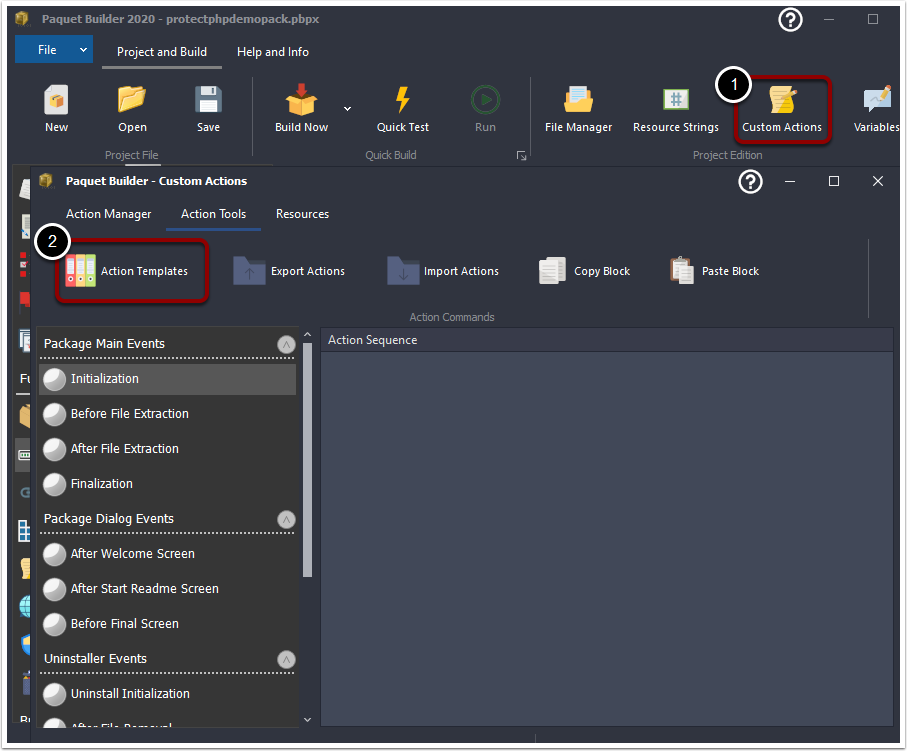
Open the Custom Actions tab and select Action Templates.
-
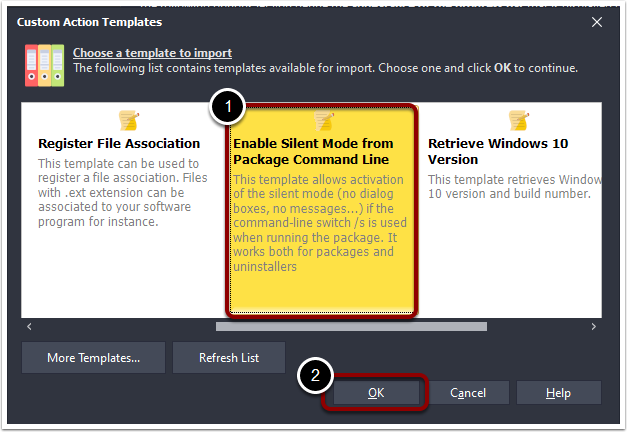
Choose “Enable Silent Mode from Package Command Line” and click OK.
-
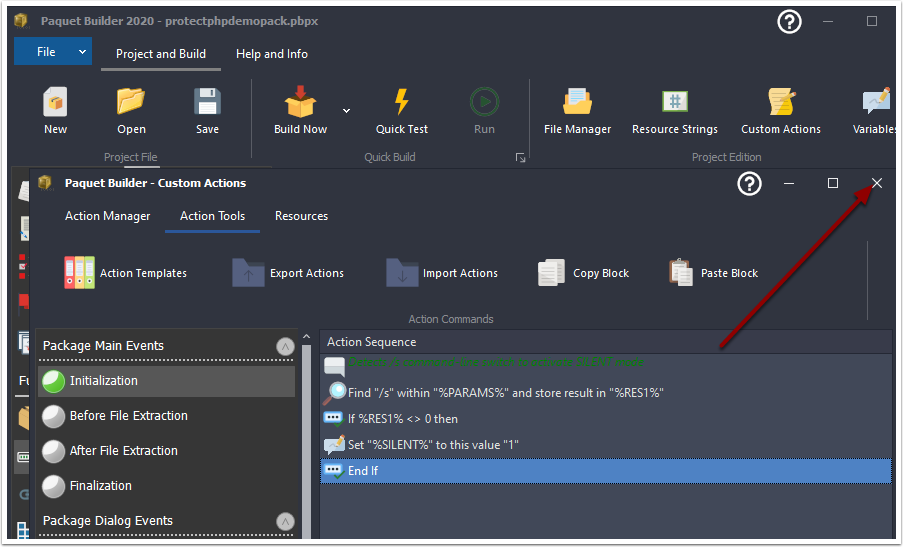
Close the window and rebuild your installer by clicking Build Now.
Running the Installer in Silent Mode
To run the installer in silent mode, include the /s parameter in the command line:
MY INSTALLER.EXE /sIf the parameter is not included, the installer will display dialogs as usual.
Start Building Your Silent Installer
Start building your own silent installer with our fully-functional trial!